
Info
Students can connect remotely to broadcast courses at USU using an application called CMA. CMA runs through the Google Chrome browser and does not require a download. This page will guide you through the process of connecting to class.
Live Chat For Broadcast Events
Before starting a chat, have you tried contacting your facilitator? Your facilitator can usually answer questions or resolve issues quicker then we can through live chat. If you don't know where to find your facilitator, or don't have a facilitator, press the button below to start up a chat.
Troubleshooting
- If after clicking "Join meeting as a guest" you get an error, try clicking it a second time.
- If on the settings page you click "Join Meeting" and are unable to join, you may have accidentally blocked your webcam and microphone. If the site doesn't recognize your webcam or microphone, you won't be able to connect. Try the following:
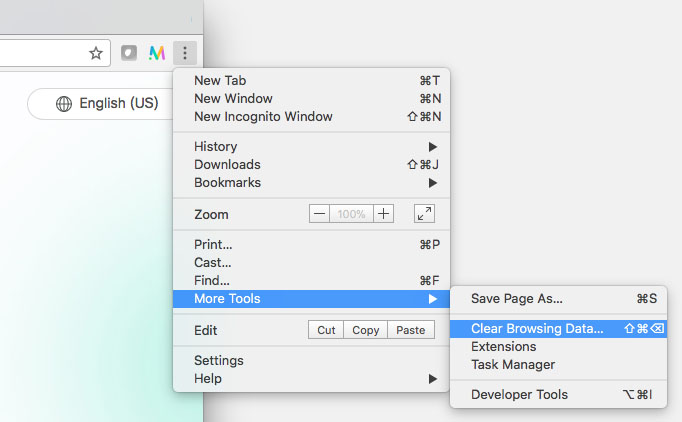
- In Google Chrome, open the "Clear Browsing Data" menu by clicking on the three dots at the top right, selecting "More Tools and "Clear Browsing Data."
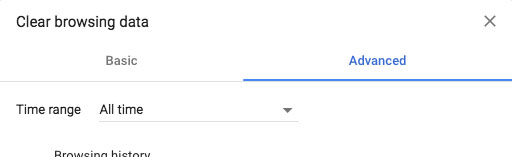
- Select the "Advanced" tab and change the "Time range" to "All time."
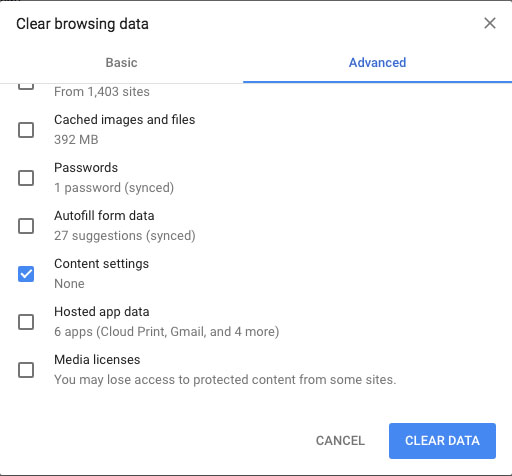
- Check the box next to "Content settings" then click "Clear Data."
- Open the link for your course in Google Chrome.
- Type in your name and select "Join meeting as a guest."
- A pop up may appear asking you to "Show notifications." Click Allow.
- Another pop up will appear asking to use your microphone and camera. Click Allow.
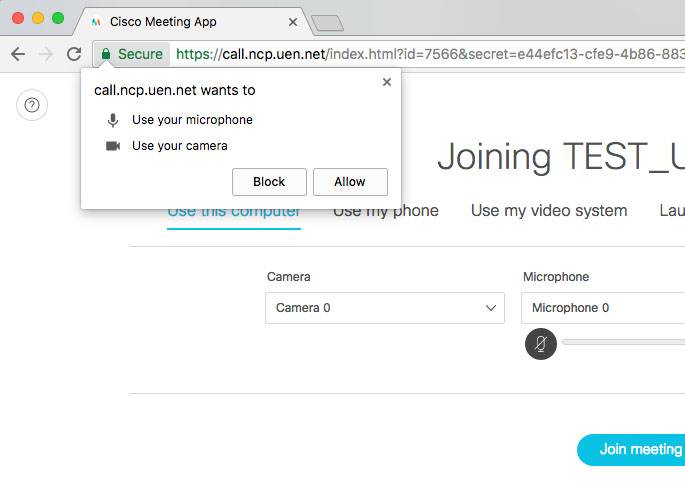
- You should now be able to verify your camera, microphone, and speakers are working correctly, then click "Join Meeting."
- In Google Chrome, open the "Clear Browsing Data" menu by clicking on the three dots at the top right, selecting "More Tools and "Clear Browsing Data."
- Ensure Hardware Acceleration is disabled in Google Chrome. Instructions for disabling this can be found in the "Requirements and Preperation" section on this page.
- Refresh the page by pressing the page refresh button in Google Chrome. If video still doesn't show, try refreshing the page again.
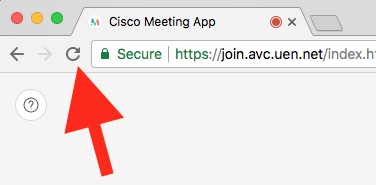
- Ensure Hardware Acceleration is disabled in Google Chrome. Instructions for disabling this can be found in the "Requirements and Preparation" section on this page.
- You may be using or have used another application that has locked the camera and is not letting other applications, like CMA, use it. Other video conferencing applications like Skype may do this. Ensure other applications that may be using the camera are closed. If all applications are closed and the camera is still not working, try restarting your computer.
- You may have accidentally blocked your webcam from CMA. Try the following:
- In Google Chrome, open the "Clear Browsing Data" menu by clicking on the three dots at the top right, selecting "More Tools and "Clear Browsing Data."
- Select the "Advanced" tab and change the "Time range" to "All time."
- Check the box next to "Content settings" then click "Clear Data."
- Open the CMA link for your event in Google Chrome.
- Type in your name and select "Join meeting as a guest."
- A pop up may appear asking you to "Show notifications." Click Allow.
- Another pop up will appear asking to use your microphone and camera. Click Allow.
- You should be able to see a preview of your camera. Verify your camera, microphone, and speakers are working correctly, then click "Join Meeting."
- In Google Chrome, open the "Clear Browsing Data" menu by clicking on the three dots at the top right, selecting "More Tools and "Clear Browsing Data."
- Some older webcams may not work with the system. Try using a different webcam if possible.
This is most likely caused by low bandwidth on your network or, depending on the age of your computer and your processor, your computer may be having a hard time keeping up. The following suggestions may help:
- Other internet connected devices/services can significantly decrease your network speed (e.g. Gamining Consoles, iPads, Netflix, etc.). Ensure these devices/services are not in use during the conference.
- Check your internet speed at http://speedtest.uen.net/. If you don't have at least 2 Mbps upload and 2 Mbps download, we recommend going somewhere with a faster internet connection. 2 Mbps up and down is recommended.
- Close out of any other applications you may have open on your computer. This will free up more resources for your video conference connection.
A hard-wired connection will be more stable and reliable than a wireless network, even if the wireless network is faster then the hard-wired network. Wireless network speeds often change based on how many people are on the same wireless network.
As long as the hard-wired connection meets the network requirements listed on this page, we recommend using the hard-wired connection for the best quality and experience.