
Overview
Connecteam is what our team will use for scheduling purposes. Connecteam will allow you access to your schedule, sign in to your shift, see important announcements, RSVP to events, and more. It is important you feel comfortable with navigating this tool since this is where most of your daily-use items will be found. This page will take you through each section of Connecteam and what its purpose is. Please keep in mind depending on if you access Connecteam via the website or the app, things will different look or be found in different locations.
Video
Here is a short clip explaining the functionalities of the Connecteam scheduling system: Coming to you shortly!
Introduction
For the purposes of this page, we will mostly use screenshots from the website version of Connecteam. Your homepage in Connecteam will feature important events and updates for our team. In addition to seeing these events, you will also be able to RSVP and let us know which meetings/events you will be able to attend. Some things to note the location of is your profile in the upper, right-hand corner, the navigation menu displayed in box format on the left-side of the screen, and the menu to view news feed information by topics. Shown on the left-hand side of the top announcement, there are a few topics, you can select from.
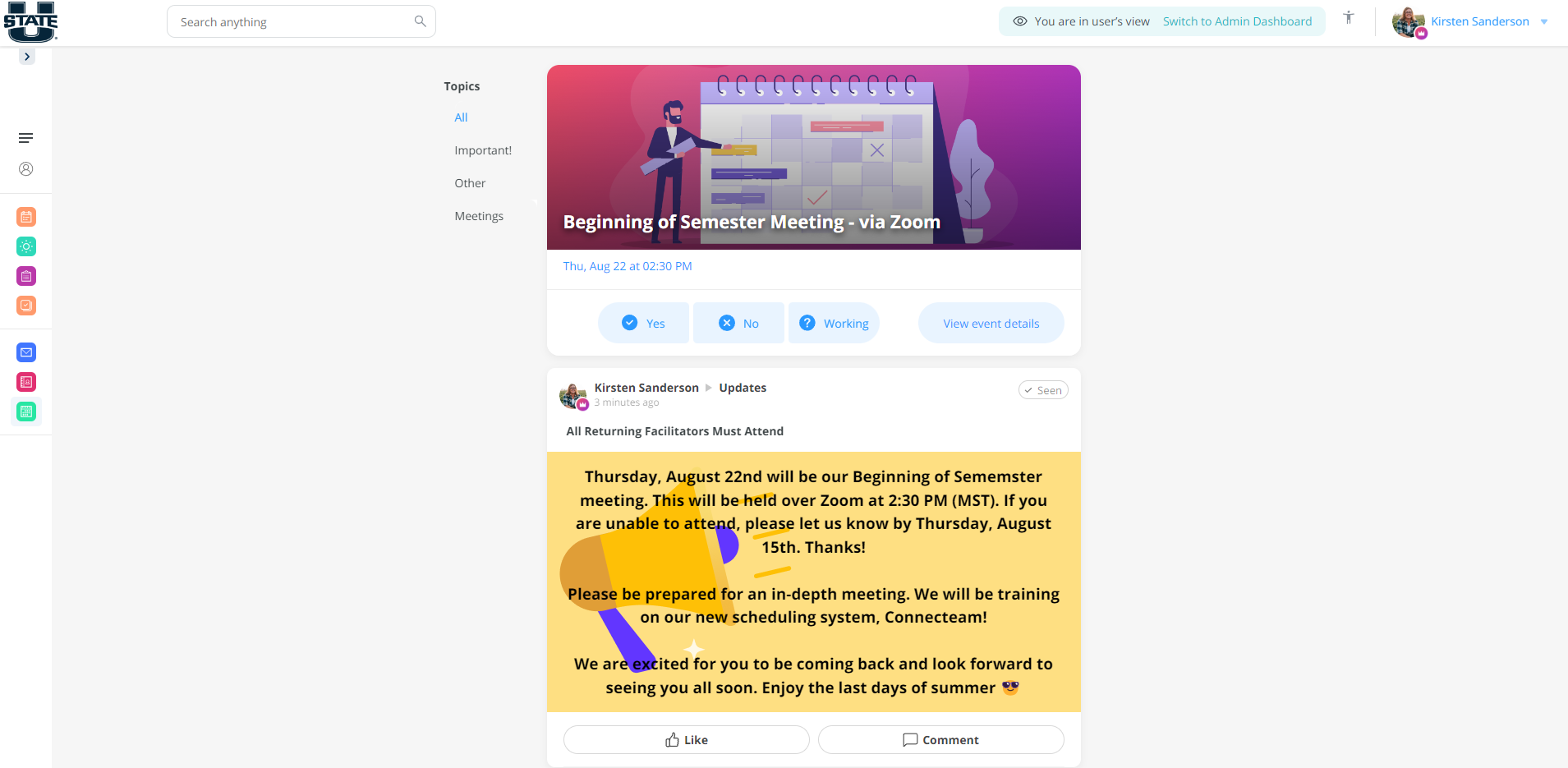
To use the navigation menu, you can select the arrow directly under USU's "U" icon to maximize or minimize the menu. Note, the three lines at the top of the navigation menu will bring you back to this page.
Job Scheduler
This is the page you will use the most in your day-to-day as a facilitator. This page is where you can claim shifts that are up for substitution, view your own weekly schedule, sign into your classes, and enter in your availability. To access this page, simply click the Job Scheduling icon in the navigation menu.
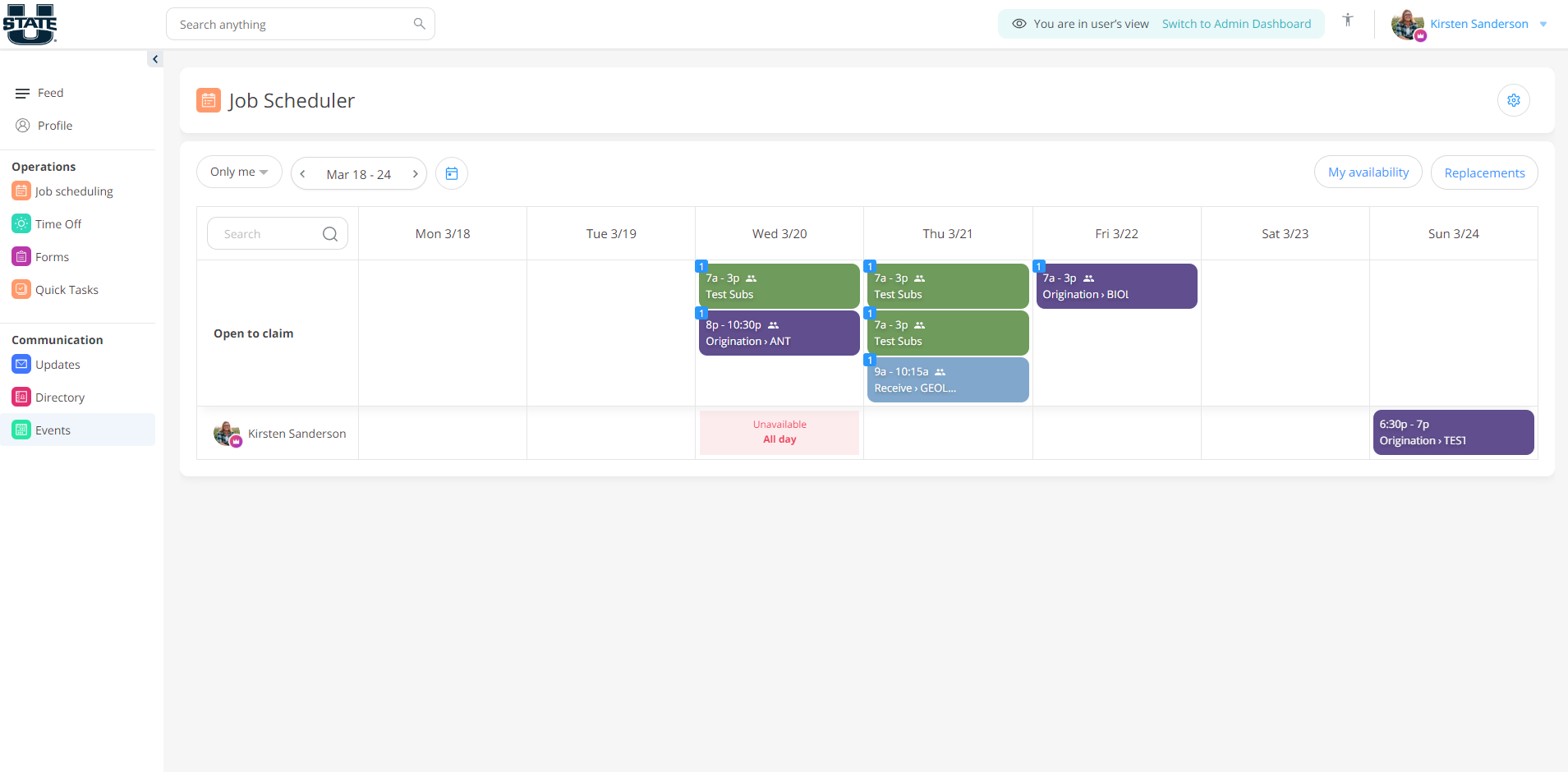
Signing into Shifts
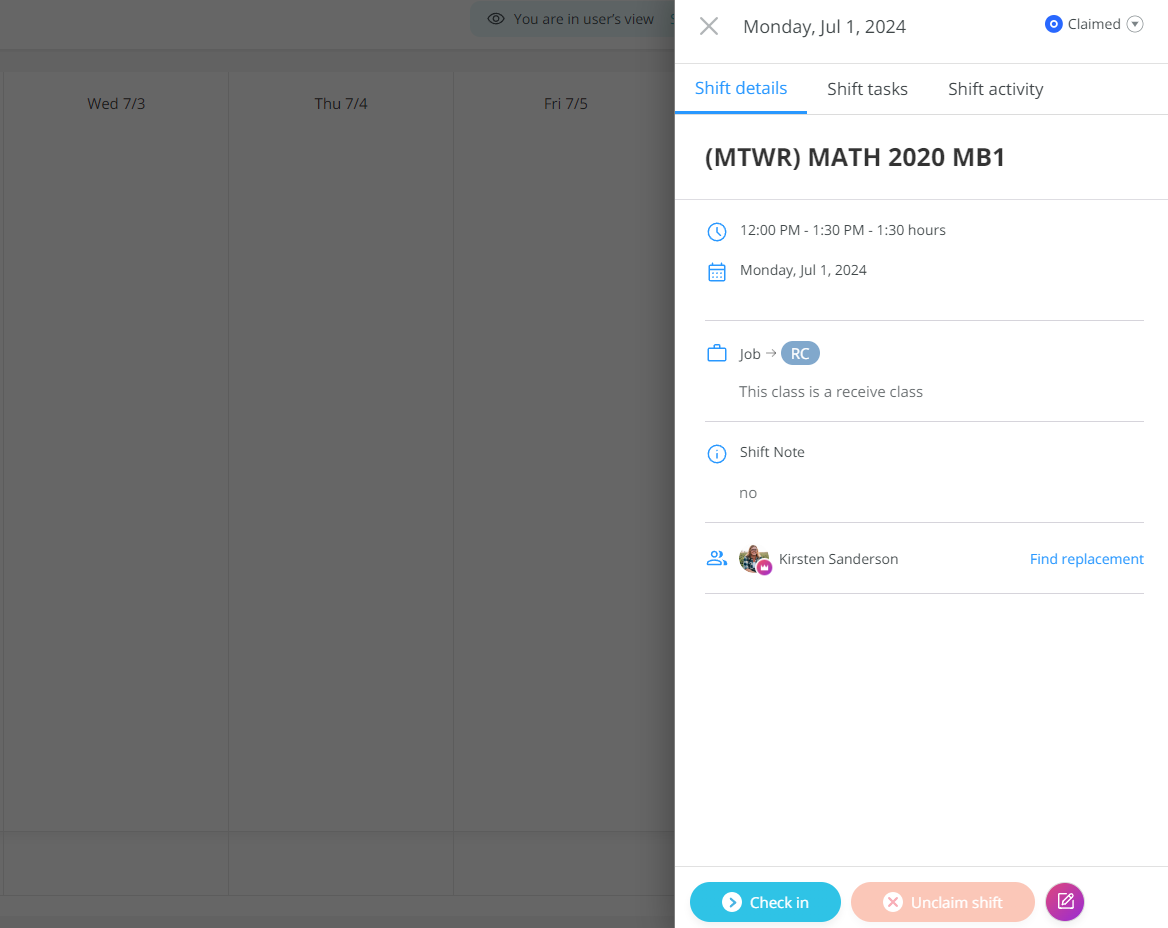
To sign into your shifts, you will need to select the event you are facilitating. There will be a green "Check In" button that you will need to select to sign into your shift. Please note, you are not expected to enter a note once signed into the shift. This is just a Connecteam feature we are unable to turn off. Once the shift is complete, you will need to go back into the event and select the "Complete" button which should have replaced the "Check In" button.
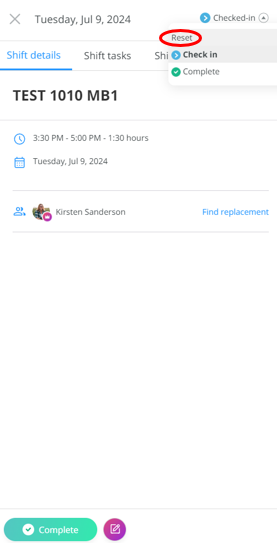
If you accidentally sign into the wrong event, don't worry. You are able to undo your sign in. To do this, simply select the event on the calendar. On the top right-hand side of the event pop-up, you will see a down arrow. Select the down arrow, then select "Reset."
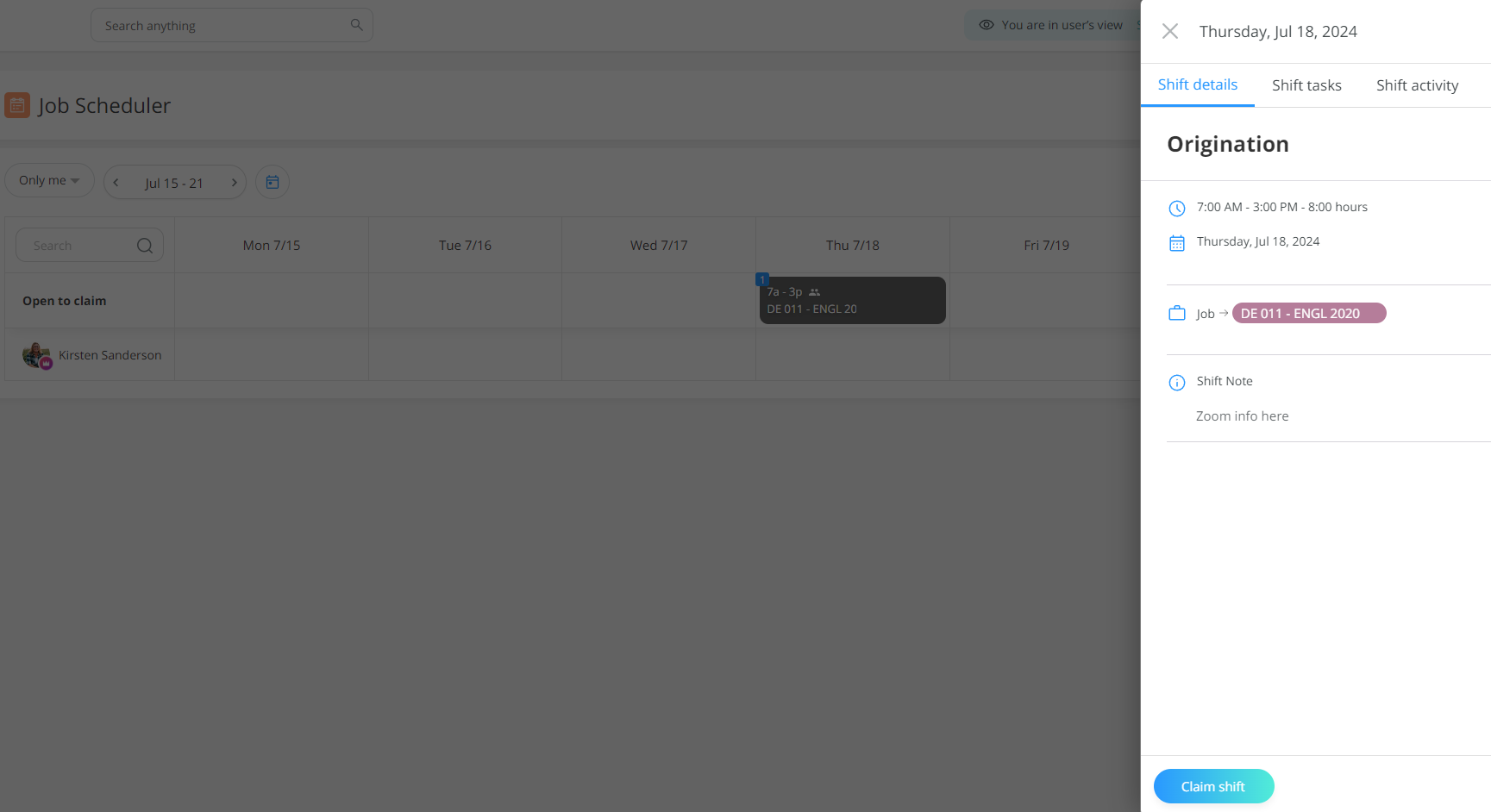
Classes located in the "Unassigned shifts" are courses that do not have an assigned facilitator. You can volunteer to take these courses or substitute a specific day. Simply select the class you would like to facilitate, then "Claim shift." Once a full-time staff member has approved the substitution, it will be added to your schedule.
Entering Availability
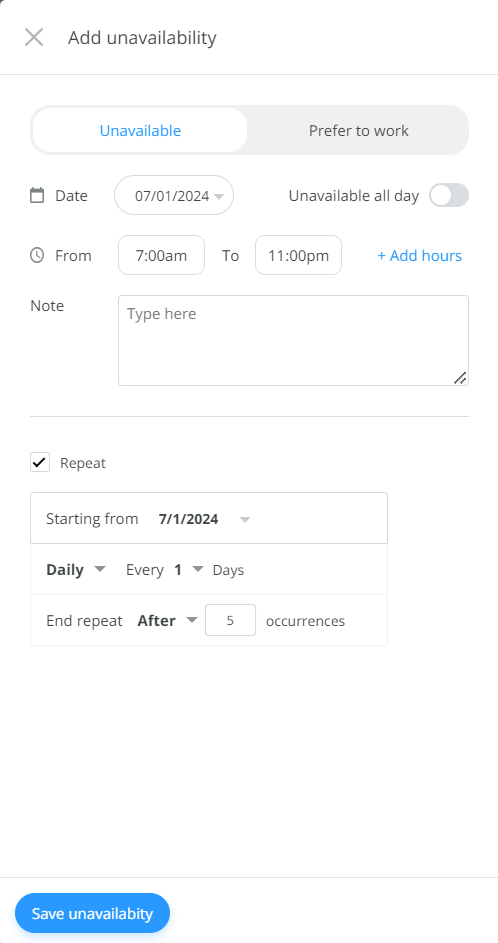
We ask that you input your availability, both when you are prefer to work and when you are unavailable to work. To do this, select the "My availability" button located on the right-hand side of the scheduler. From here, you are able to input any availability you have. Simply select the date and time. If the event is reoccurring, such as a class you are taking as a student, you can repeat the availability for the duration of the semester by selecting "Repeat."
Time Off
To put your class up for substitution, you will go to "Time Off" in the navigation menu. From there, you can request a time off by selecting the "Request time off" button.

Once selected, you will need to select whether this is for being sick or one of your personal days.
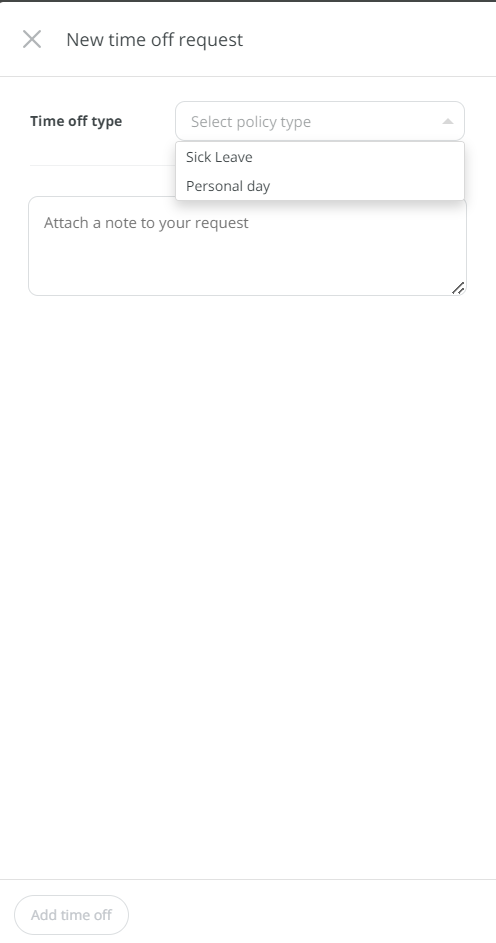
Then, you will choose if you are taking the whole day. If taking a partial day, simply put the time you will be unavailable. Finally, when asked to attach a note to your request, please include the classes you need substituted (including the section code, i.e. MB1) and a reason for why you need the day off.

Finally, remember that we do not let you go over five personal days. To help you keep track of your time off, you can refer to the request history shown at the bottom of the "Time Off" page.
There is an option to do choose a replacement from the sceduling page. Please do not use this option to get time off. If someone has already talked to you about covering your shift, add those details to the notes when requesting time off.
Substitutions - Replacement Requests
To submit a replacement request for your course, click on the shift you would like to find a replacement for, then click on "Find Replacement." Select the individual you would like to send the replacement request to (if you have not made arrangements with a specific individual, you can "Select All" instead), then click "Send Request."
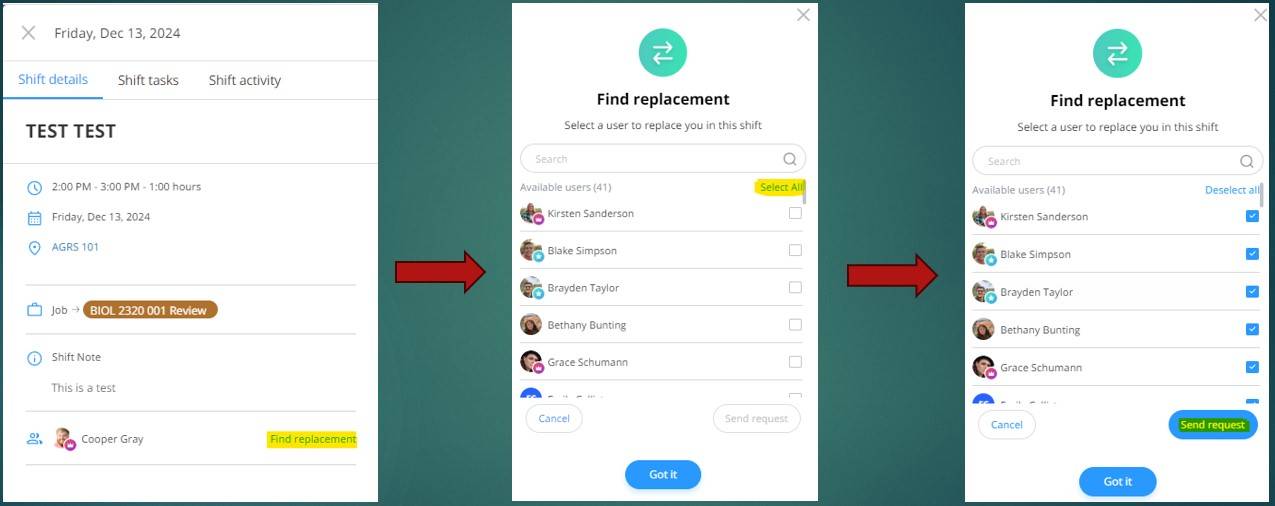
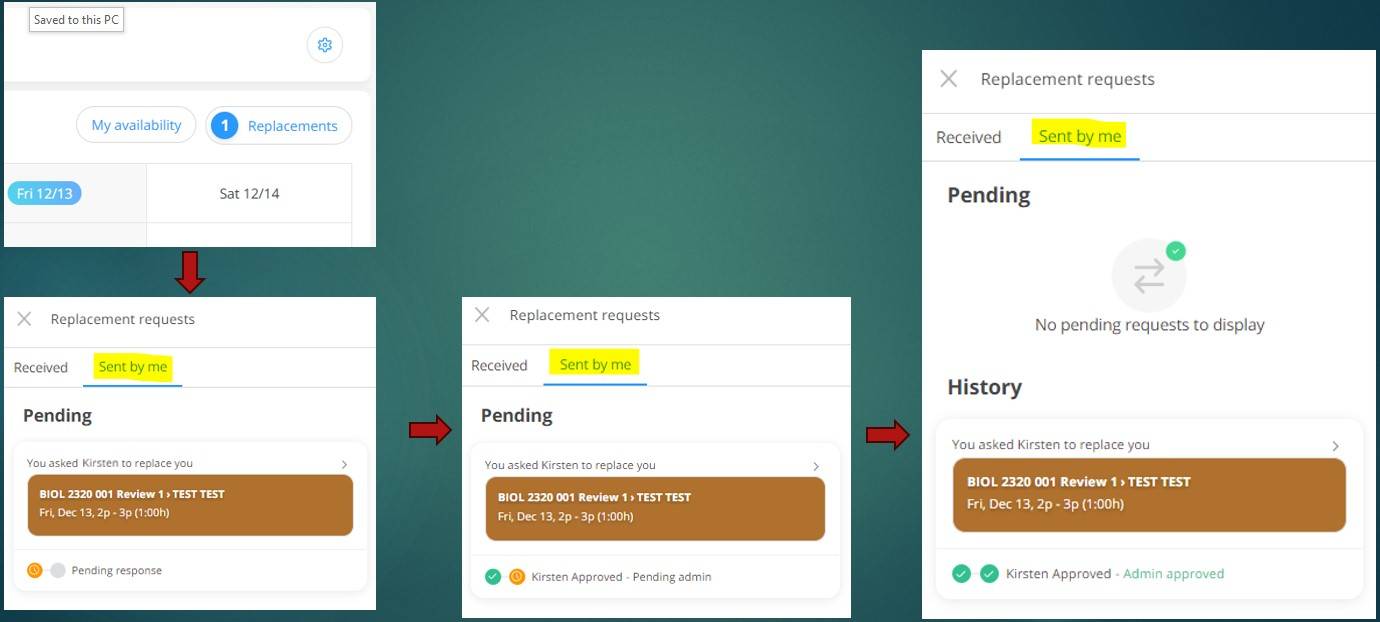
You can view your pending replacement requests by navigating to the "Replacements" menu on the Job Scheduler, where you can see the progress of each request. Once the request has been approved by the individual who wants to take the shift and a full-time staff member, the shift will be removed from your schedule and added to the substitute's schedule instead.
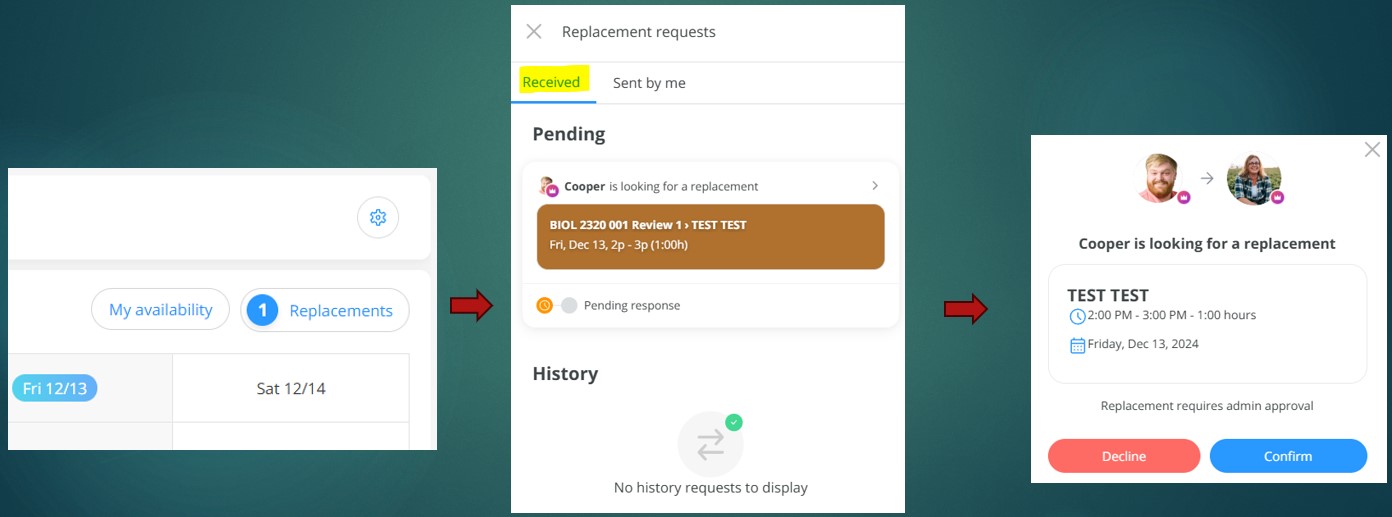
To find extra hours, or substitute for other facilitators, navigate to the "Replacements" menu on the Job Scheduler. There, under the "Received" tab, you can view all available replacement shift requests. To request a shift, click the shift you would like to request, then confirm. Once approved by full-time staff, the shift will be added to your schedule.
Forms
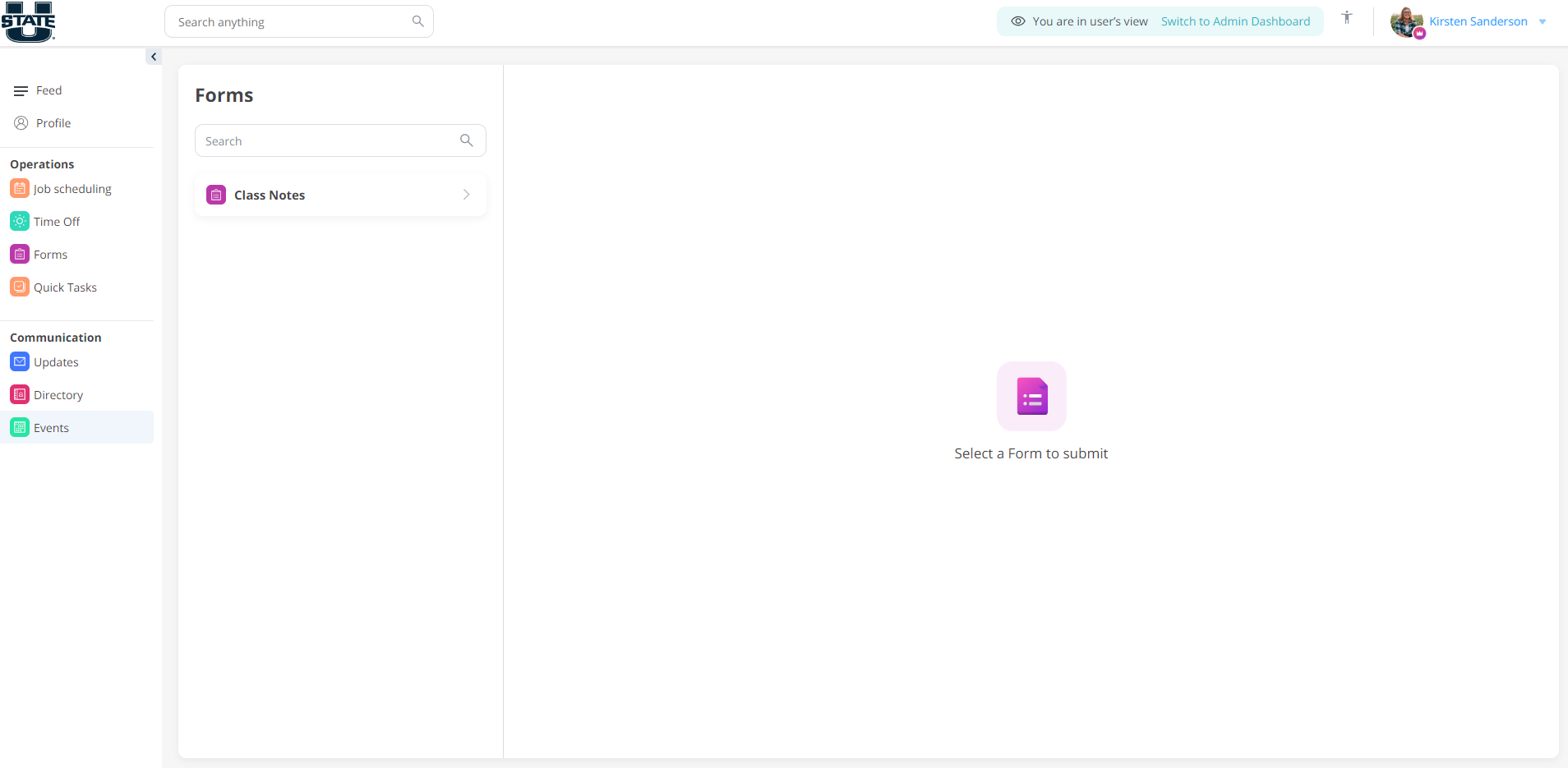
While we will not use "Forms" often, you will use this tab when you need class notes input into your events or when asked to complete a certain survey.
Quick Tasks
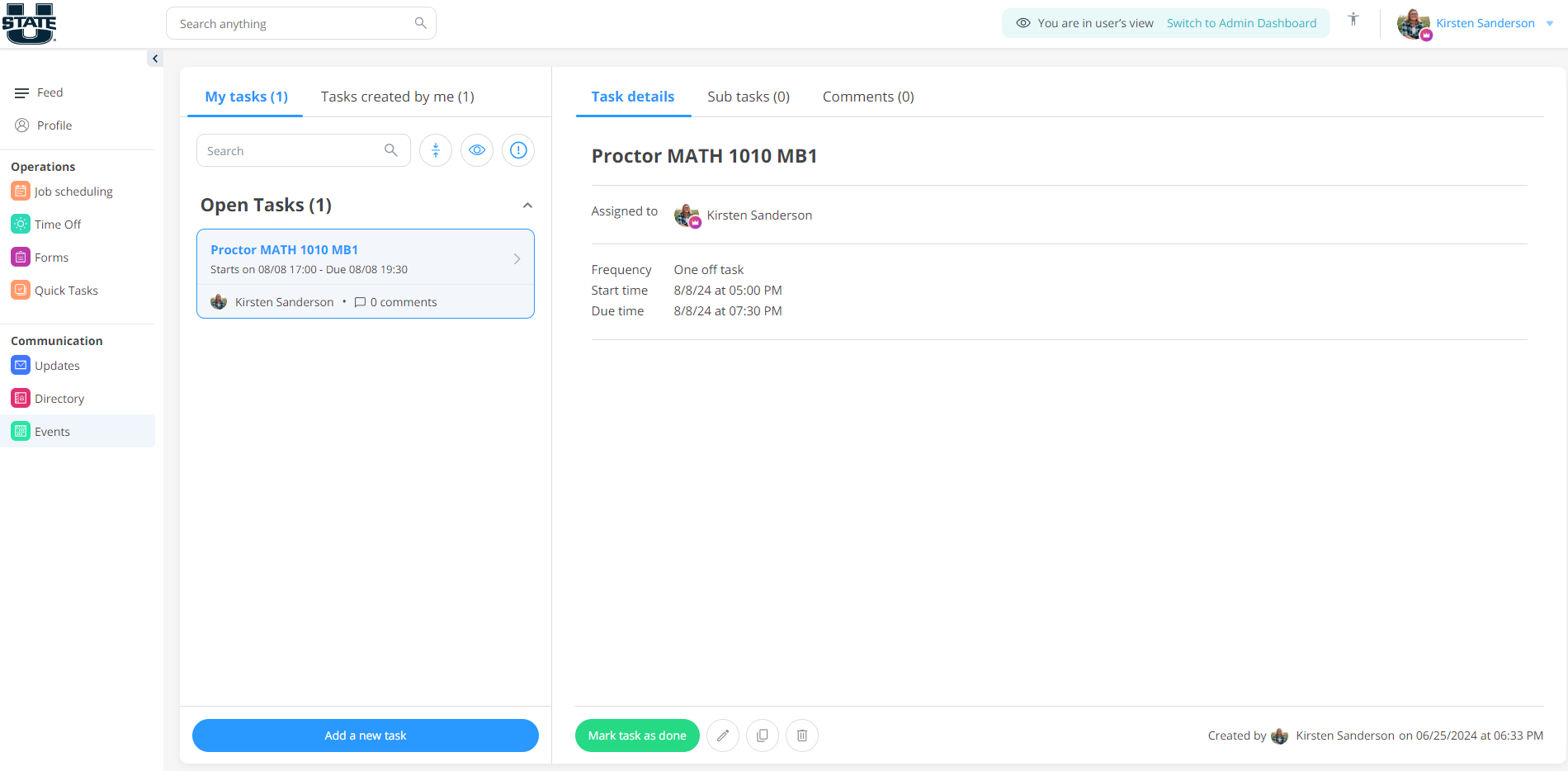
If there is a certain event or task you would like to remind yourself to do, you are able to use the Quick Tasks to help you keep track of those tasks. Very rarely, will the full-time staff create a quick task for you to do, so this purpose is more for your use and benefit.
To create a task, simply select "Quick Tasks" from the navigation menu on the left and then "Add a new task." You will be able to add any information you need prior to saving. Once you have completed the last, you are able to select that task under "Open Tasks" and mark the task as done.
Updates
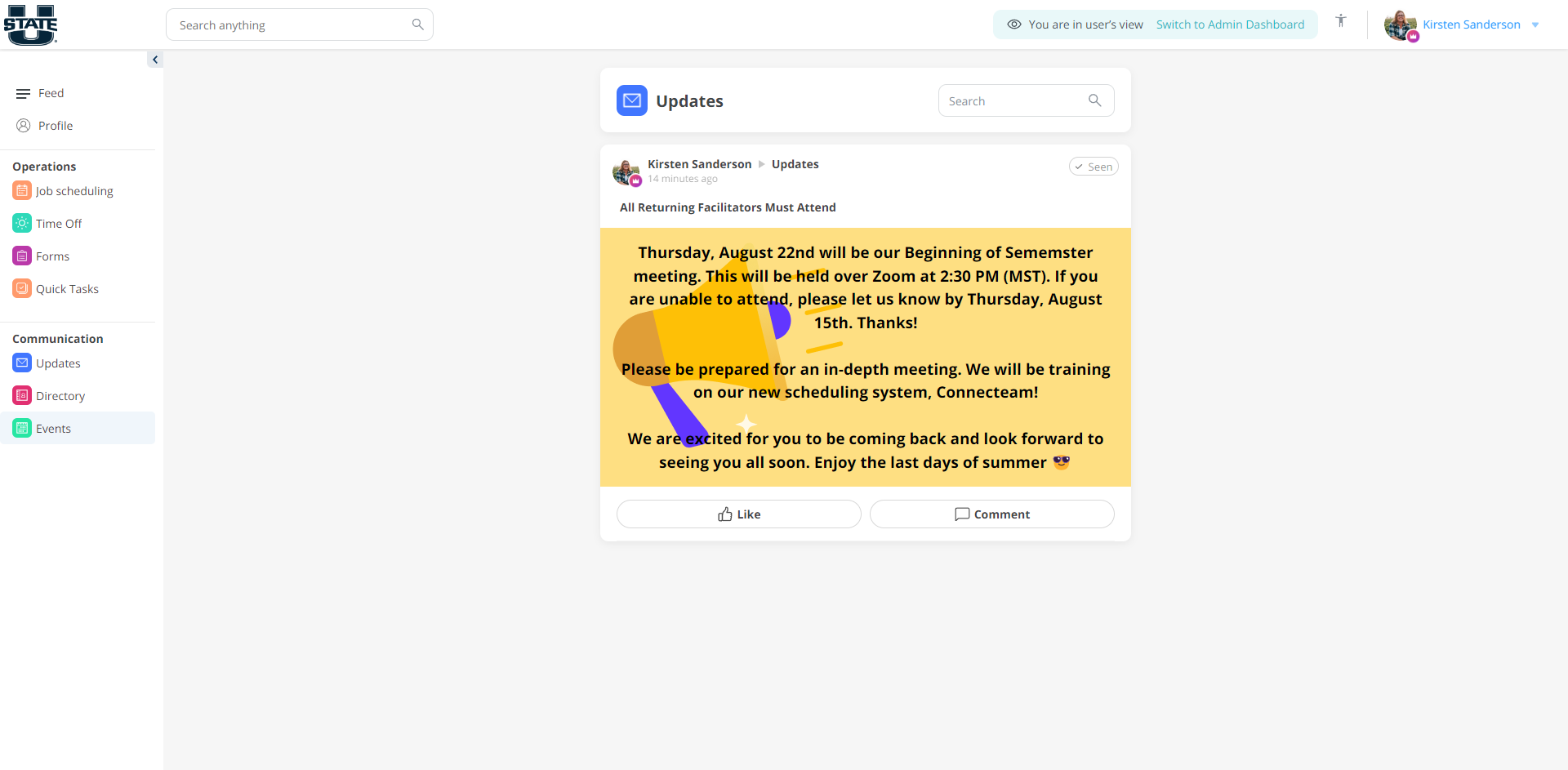
In "Updates," you will find all the announcements in the order they were published from newest to oldest. If you would like to find a prior announcement or see only announcements, this is where you would go.
Directory
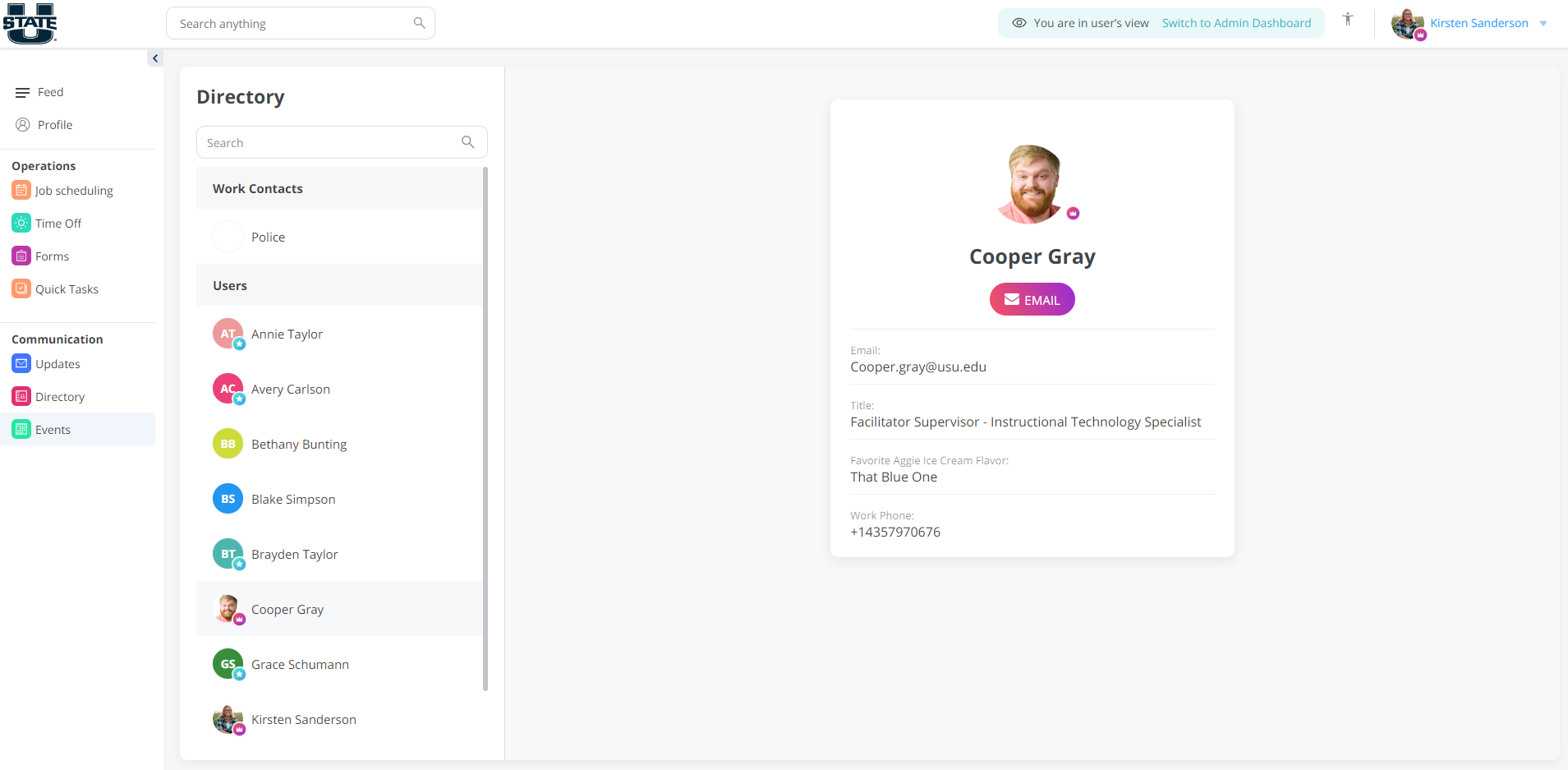
The directory will show you all our team - their name, work email, title, favorite Aggie ice cream flavor, and (in the case of full-time employees) work phone numbers.
Events
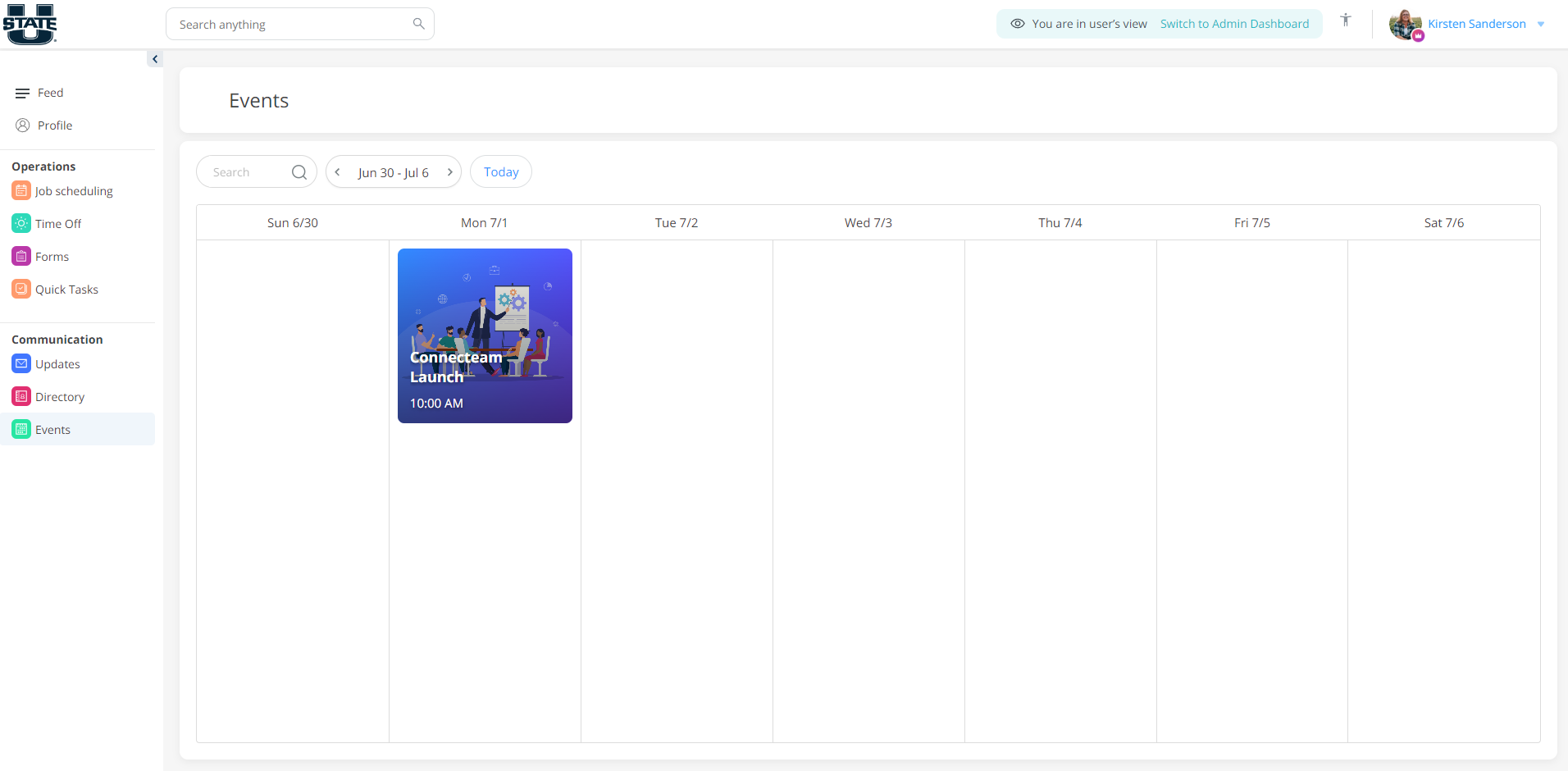
Similar to "Updates," Events will show you only the various events posted for our team. If you would like to find a prior event or see only the events, this is where you would go. You most likely won't use this tab often, but if you need to find and RSVP for an event quickly, you may find this tab helpful. To RSVP, simply click on the event and select your response.
As a facilitator, you will have the responsibility of learning how to operate the Connecteam software. We hope that this page will help you get started and answer any potential questions you may have about how to navigate this system. As always, if you have any questions about Connecteam or about the system in general, please reach out to us via PureChat or Slack and we will help walk you through the information.