
Overview
Zoom is the primary web broadcasting platform used at USU. Facilitators help with Connect classes (which involves Zoom participants as well). Every student and full-time employee on campus has access to a Zoom account.
Connecting to the Call
Only connect to Zoom on the computer in these circumstances:
- The meeting needs recorded and is not set to automatically record.
- The teacher would like to view the chats or utilize other Zoom features like breakout rooms. Keep in mind that only the students connected to Zoom will have access to those features individually otherwise they will be split up via room only.
- The teacher would like to view the Zoom participants clearer.
-
Have the instructor go to their Canvas course and access the Zoom integration (found on the left in the navigation menu).
-
Click “Start” next to the correct meeting.
-
While connecting to the call, a pop-up will appear asking to "join with computer audio." Simply close out of that pop-up. If you accidentally do connect to audio, select the arrow next to the microphone in the bottom left hand corner of the Zoom call and select "Leave Computer Audio." If the audio is connected, audio feedback will interfere.
Make sure to start the recording on Zoom (saved via the cloud) if the teacher wants the class recorded. Learn more about recordings here.
Troubleshooting
Each instructor teaching a Connect class had their Zoom calls scheduled for them, as specific settings need to be in place for it to work with the classroom equipment. The settings that should not be changed are:
- Waiting room is off
- Mute on entry is off
- Allow participants to join before the host
- Allow all participants to share content
If a problem arises relating to any of these settings (the room is muted or sharing content doesn't work), view the solutions listed below or start a chat. Please report the problem after class.
Zoom asks for a passcode or host key
Start a chat. The Zoom ID and passcode were scheduled incorrectly or the passcode was changed.
The room is muted
Open Zoom on the computer and "ask to unmute" the IVC participant (labeled as "HiEd_USU_..."). Or start a chat. Make sure to report the problem after class so we can change that Zoom setting.
Sharing content isn't working
Have the instructor open Zoom on the computer. Select the security icon at the bottom of the Zoom call and check the option allowing participants to share content. Report the problem so we can change that Zoom setting.
Facilitating Tips
How to get host access
You will need to have either the host themselves log into that device or contact the full-time office staff so they can log in and manually reassign you to the be the host of the meeting. If you need this to happen, or if you need help in general, please open a chat to get help obtaining the host access.
How to start a recording for your class
Normally, Zoom recordings are set to automatically record at the beginning of class once you connect up. If you would like to have your class setup to automatically record for any class period, or even the entire semester, there is an option to report it in your after class report. We can then setup the meeting to automatically record on the day(s) needed. This will need to be done outside of class, as the automatic recording can not be setup if the meeting is in session.
If you need a recording started immediately and the meeting is in session, you can open a Pure Chat and someone in the office will be able to get the recording started for you. Let us know the class (i.e. MATH 1050 MB1) and the professor's name and we should be able to find, join, and begin the recording.
Please note, all of these recordings, no matter the method, will be saved to the professor's account on zoom.usu.edu and their My Media page on Canvas. If zoom is enabled in their Canvas course, they can also publish the recordings there by viewing the "cloud recordings" tab.
Get added as alternative host
If added as an alternative host, you can connect to the Zoom call on the facilitator computer (without connecting audio) as co-host automatically and help with the following Zoom features:
- Manage the waiting room
- Remove participants in the case of zoombombing
- Monitor chats
- Mute and unmute participants
- Start, pause, and stop the recording (it will still be sent to the teacher's account)
- Manage breakout rooms
- Manage polls*
*Only possible if the teacher created the polls before class began.
Get in touch with the full-time office staff if you would like added as an alternative host.
DTMF Tones - Web broadcast classes
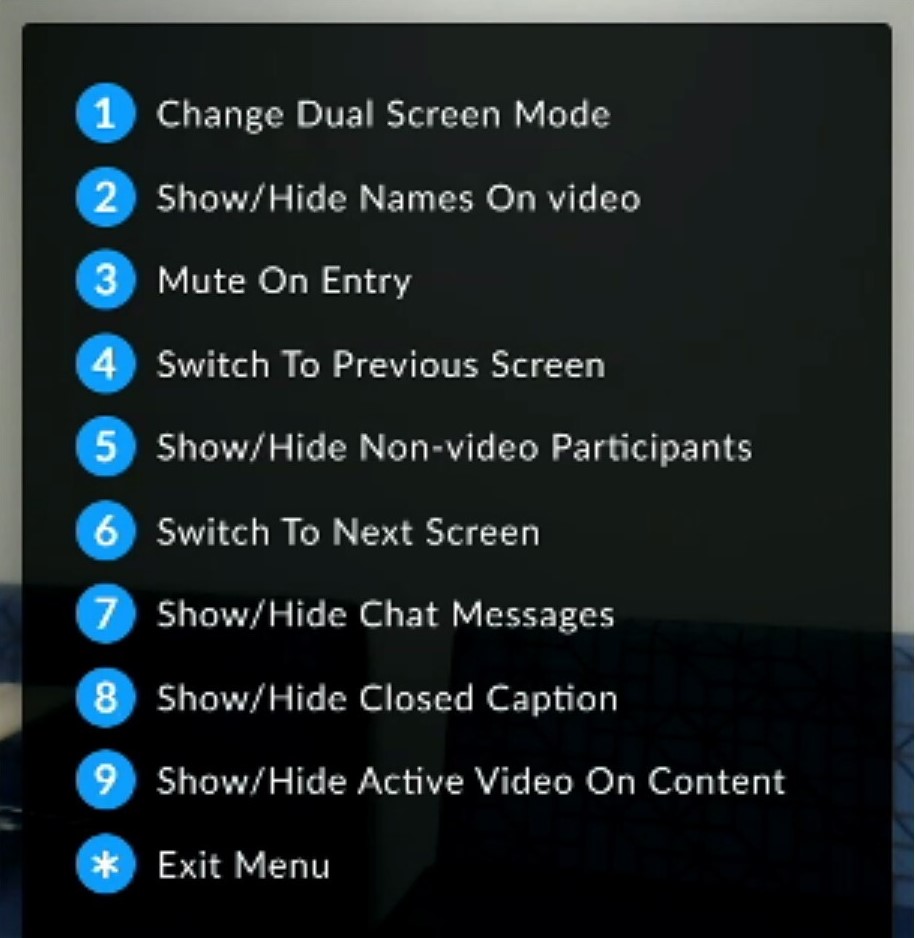
If you have joined a Zoom using the touch panel, you can use the DTMF tones from the keypad on the touch panel to control the Zoom call. Changing the layout, muting/unmuting participants, and allowing participants in from the waiting room are a few of the options. Below are images of the menu. View more details about each menu option here.

Dual Monitors
Users can use Zoom across multiple monitors, but the default view creates small floating thumbnails of the participants. By following the steps below, the host will be able to see the full Zoom window with large participants on one screen while their presentation is on the other. If the host would like to see their students larger, follow these steps:
- Open the Zoom desktop application
- Select the settings cog in the top right

- Go to the Share Screen tab on the left
- Check the box next to Show my Zoom windows to other participants when I am screen sharing

Now the same setting needs to be applied to the user's account on the website.
- Open a web browser and sign into zoom.usu.edu
- Select Settings on the left
- Find Show Zoom windows during screen share and turn the toggle on
Troubleshooting
This section includes instructions for simple troubleshooting regarding Zoom. This includes: certain features being unavailable, signing into the Zoom application to receive host rights, testing computer audio, leaving computer audio, finding meeting ID and passcode, running breakout rooms, controling recordings, and allowing sharing rights.Certain Features are Unavailable
If features are not available or working as they should, try updating the Zoom application. This is especially important for breakout rooms to function correctly.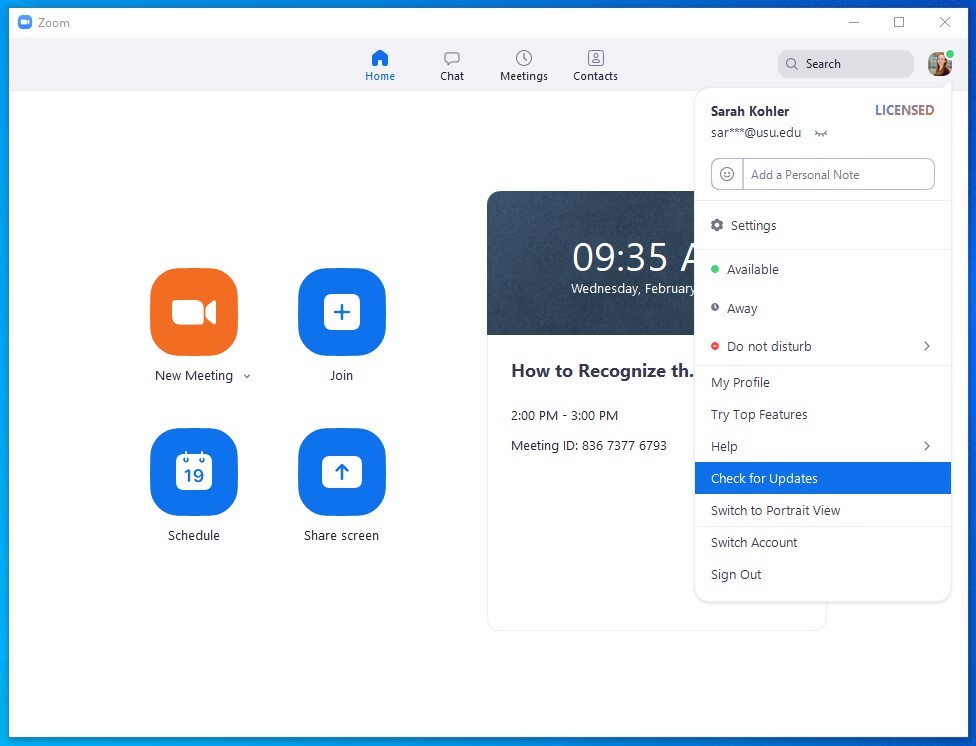
Being Recognized as Host - Alternate Host Access
If the correct person is not being recognized as the host or co-host, or if they have been assigned as the Alternate host of the meeting, make sure they are signed into the USU Zoom account. Sign in through the desktop Zoom client (using the "sign in with SSO" option), then rejoin the call. The SSO for the University is 'usu-edu.' Once the SSO is entered, sign in with the host's (or alternate host's) A# email and strong passcode.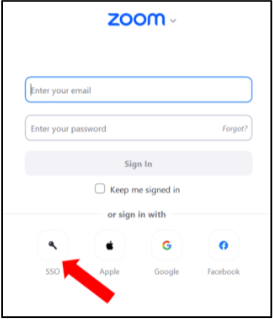

Testing Computer Audio
If the audio is not working properly, you will need to test the computer audio. To do this, select the up arrow next to the microphone and then select 'Test Speaker & Microphone.' Cycle through the different sources available until you find a source that allows the audio to work for the room and Zoom.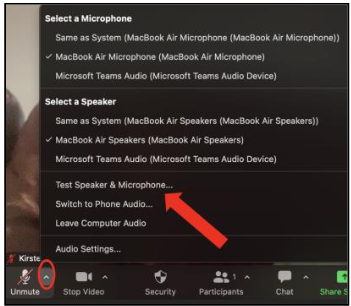
Leaving Computer Audio
If you are connecting more than one device in a room, you will need to make sure to not join audio on the device. The easiest way to do this is to select the 'X' when Zoom asks if you want to join audio.However, if audio is joined, simply select the up arrow next to the microphone icon and select 'Leave Computer Audio.' Having more than one device connected to audio will also be the most common reason why you will experience an echo in the Zoom call.

Locating Meeting ID and Passcode
To locate the meeting ID and passcode from the meeting, simply select the green shield in the upper left-hand corner. 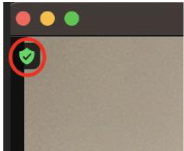
Running Breakout Rooms
If you are not signed into the Zoom application before joining the Zoom meeting, you will not have access to the host rights you need to run breakout rooms. If you have been assigned alternate host privileges, please leave the meeting and sign into the application if you are having troubles finding the controls you need. If you do not have the privileges, open up a chat.
To open breakout rooms, simply select the icon on the bottom of the Zoom screen labeled 'Breakout Rooms.' From there, you will be able to create, control, and manage the breakout rooms and the various settings related to breakout rooms.
Controling Recordings
If your class is needing recorded each week and not controled, please notify the office staff in a chat and again in your after-class report. If you need to control the recording (pausing, stopping, etc.), you will need to sign in as an alternative host. If you are not signed into the Zoom application before joining the Zoom meeting, you will not have access to the host rights you need to control breakout rooms.
When starting a recording, please always be sure to record to the cloud. To start a recording, simply select the 'Record' icon at the bottom of the Zoom screen. Once the recording is started, the icon will be replaced with a stop and pause icon in order to stop and pause the recordings.
Allowing Sharing Rights
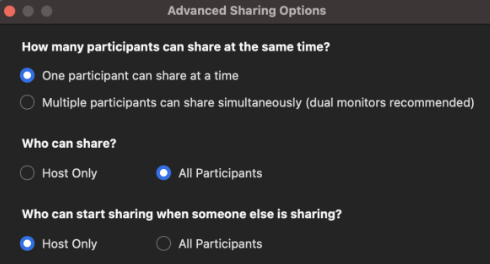
If you have host privileges, you will also be able to ensure all participants can share content. To do so, select the up arrow next to 'Share Screen' and then select 'Advanced Sharing Options.' Ensure that 'All Participants' is selected under the "Who can share?" section.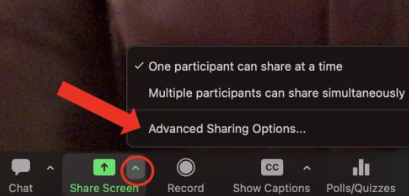
Helpful Resources
CIDI's website contains instructions specifically for instructors using Zoom. There are many troubleshooting tips that are helpful for facilitators.
If an instructor would like additional support, you can send them the link to CIDI's website.
You can also find help and resources at Zoom's support website