AirMedia is used to share laptop content without using a cord (like an HDMI cable), and it is available in all of the classrooms.
Getting Started
1. On the touch panel, select Share and then choose AirMedia. If AirMedia is not an option, select Laptop. As long as nothing is plugged into the laptop HDMI at the instructor station, AirMedia will show up on the screen.
2. Open a browser on the laptop and enter the IP address displayed on the AirMedia screen (usually found in the bottom left corner). Example: http://123.45.6.78
3. Download and run the AirMedia software.
4. When asked, enter a 4 digit code which can be found either on the bottom left hand side of the screen (under the IP address) or on top of the AirMedia banner on the screen.
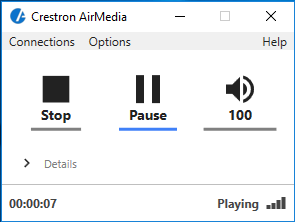
5. A control panel will appear on the laptop where you can manage the display. Choose to start, stop, pause, and mute the presentation from there.