
Exclamation Triangle Known Issues
Back Monitor:
The Back Monitor needs to be turned on manually
Auto-Framing:
Do not use any auto-framing or multi-stream option to control the focus of the camera. This can cause some issues with the camera or will fail to properly capture the professor/students.
Lightbulb Helpful Room Hints
Can't find the wireless microphone? Check the drawers under the instructor's podium or check the drawer in the "hidden" cupboard located in the front wall underneath the whiteboard.
The student mics are controlled via the touch panel. However, you won't see a mute or unmute button. Instead, they are run by a toggle switch. When the toggle is gray, the mics are ready for the students to use. When the toggle is blue, the mics are muted.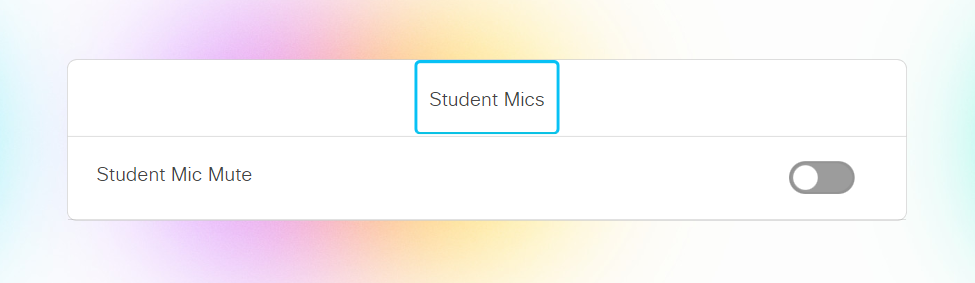
If the instructor mouse stops working, pull out the drawer on the instructor's console. Behind the drawer is a USB extender labeled "mouse." Disconnect the cat 6 side, wait 5 seconds, then reconnect.
The Light setting labelled 3 is the best to show the projector in the room. This one turns off the lights focused on the screen to make the viewing experience much better.
We've noticed that, in classrooms that only have the 1 projector/monitor screen up front, it is not possible to use the layouts button to change the site layouts after content is being shared (no matter who is sharing the content). When content is being shared, the layout options turn into different ways to orient the size of the sites and content on the same screen.
If you need to change the site layouts while content is being shared, open the number keypad on the Touch10. When you have the keypad up, enter *6 on the keypad. This will manually swap the site layouts similar to a bridge button. Continually cycle through the different layouts until you get to the one you would like by hitting *6. Afterwards, you can close out of the keypad and you should be good to go!
Additional Information
Student View:
Instructor View:
Location: