
VLC Media Player
 Developed by the VideoLAN project, VLC is a free and open-source multimedia player that supports a wide range of audio and video formats, including DVDs, Audio CDs, and various streaming protocols. It is cross platform, available on Windows, macOS, Linux, Android, and iOS. Known for its versatility, VLC can play almost any media file without needing additional codecs. VLC is highly regarded for its simplicity, speed, and powerful performance.
VLC does not natively support Blu-ray disc playback.
Document Camera Software
Document Cameras allow papers, books, small objects and phone screens to be shared with a class. Most document camera's are connected to the instructor PC by USB port and will be operated by an application on the PC. The brand of camera will determine what software you should use.
Elmo
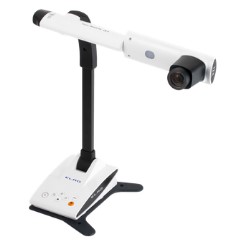
The Elmo cameras use software called Image Mate 4. This app should be preinstalled on all classroom computers and there will usually be a shortcut for it on the desktop.
Others (Wolfvision, Vaddio, etc.)
Other cameras may not have dedicated software. If Image Mate 4 does not work, open the Windows Camera App ...
Ipevo
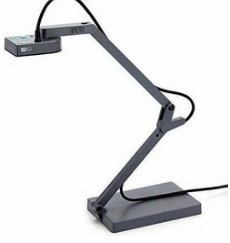
The Ipevo cameras use software called Ipevo Visualizer. Generally this software is not preinstalled and may need to be manually set up. If this is the case contact a member of the Classroom Support team.
Connecteam
Connecteam is a service we utilize to schedule shifts and communicate with the team.
Lecture Capture
To record lectures, we may use either Zoom or Kaltura Classroom, regardless of which you use, the video will be saved to your My Media account.


Aggietime
Developed in house here at Utah State University, Aggietime is the time card program that was created for student employees to track their hours. In our team, we use Aggietime as a time card to track how many hours are worked each work day. We do this by clocking in and clocking out of our shifts each day.
Employees clock into Aggietime at the beginning of their shifts. We ask that you are early to your shifts to help set up the technology and run site check. You are encouraged to clock this time as paid work time. Depending on the class type you are facilitating, you may clock in at the following times:
- Receive classes: 15 minutes before class begins
- Origination classes: 20 minutes before class begins
- Mobile Cart classes: 30 minutes before class begins
There are two pay periods each month. One from the 1st of the month through the 15th and the second from the 16th through the last day of the month. You will receive your direct deposit on the 10th (for work done the 16th - last day of the previous month) and 25th (for work done the 1st - 15th of the current month). If the 10th or 25th falls on a holiday or weekend, you will be paid the next University workday.
FAQ's and Software Troubleshooting
Powerpoint: Screen flickering, disable hardware acceleration....- Powerpoint has been seen to flicker while annotating on Surface Studio computers. This happens when the screen is not set to it's native resolution. Unfortunately, we need the resolution to be 1920x1080 to match the projector/TV in the room. This flickering is related to graphics hardware acceleration, likely the handoff between the CPU and GPU for rendering the image. To stop this flickering, in Powerpoint, open Settings> Advanced> Disable Hardware Acceleration. Click the check box to disable hardware acceleration.
Kaltura UI: Frozen, missing previews, recording crash, etc...
- Kaltura may at times not display the camera previews, or boxes where the previews linger after Kaltura is minimized. When this happens, open Kaltura and hit the X in the top right corner to close the UI. Kaltura will remain open in the background, and can be seen in the system tray. Select the icon in the system tray to re-open the user interface.