
Info
The Surface Studio is an all-in-one computer with a large, interactive display and stylus that provides excellent annotation features.
Video Overview
How to Use
The Basics
The Surface Studio is an all-in-one computer with a large, interactive display.
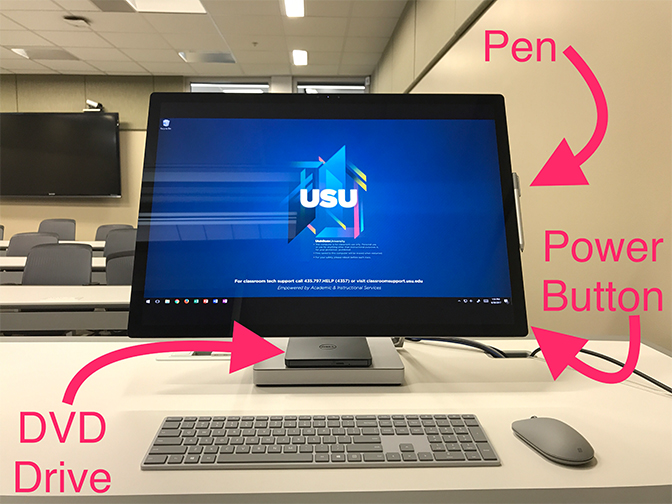
To wake up the Surface Studio if asleep, press a key on the keyboard or the mouse. If after a few seconds the computer does not wake up, press the power putton on the lower right side of the display.
If using a flash drive, USB ports can be found on the back of the Surface Studio base.
If needed, a DVD drive can be found sitting on top of the Surface Studio base. To use, simply press the Eject button on the front of the DVD drive and insert a DVD.
If desired, the display can be lowered to a nearly flat position to allow for detailed annotations. When adjusting the display, place a hand on the top and bottom of the display and gently raise or lower it.
One can interact with the display and annotate using either a Surface Pen or one's fingers. If provided in the room, a Surface Pen will be attached magnetically to a side of the Surface Studio display. One can also bring in their own Surface Pen to use with the Surface Studio.
Annotating
The Surface Pen can be used to annotate in several applications including Microsoft OneNote, PowerPoint, and Word. The Surface Studio incorporates palm rejection to allow one to gently rest their palm on the display while annotating to allow for more detailed annotations.
Learn how to use the Surface Studio to annotate on the following:
The Surface Studio and Surface Pen allows for easy annotations in PowerPoint. Once in Presentation mode, select the Pen icon then "Pen."
To change the ink color, select the Pen icon, then "Ink Color."
Microsoft OneNote is now integrated with Canvas! You can now use the Microsoft Surface Studio in the classroom as a whiteboard and to annotate your slides. Those files can then be made available to your students immediately through Canvas using this integration. This is a short demonstration that details the OneNote integration.
After Class
Before leaving the classroom, ensure you attach the Surface Pen to the side of the Surface Studio's display (it attaches magnetically) and log out your account. This will help the instructor of the next class to easily find the Surface Pen.