
Overview
While Utah State has mulitiple rooms and buildings dedicated to Connect classes used to connect multiple campuses up to a single class. The majority of classrooms around campus are dedicated to Face-to-Face learning. Inside these classroom, instead of having Codecs and other broadcasting equipment, these rooms feature a basic toolset that is all controlled by a very simple Touch Panel. We call these Touch Panels Face-to-Face (F2F) Touch Panels. This page will inform you of the features available in a Face-to-Face Classroom and will help you if you ever need to assist someone in one of these classrooms.
Video
Here is a short clip explaining the functionalities of the Face-to-Face Touch Panel:
Touch Panel
These Crestron Touch Panels look very similarly like our Old Crestron Touch Panels found around campus. These Touch Panels, however, have less features and controls needed to set up and control the room. When you first walk into the room, you may find the Touch Panel and room turned off. To turn the system on and get the room ready, simply click on the Power button. This will turn on the projector and lower the screen in most rooms and will help simplify the set up of Face-to-Face classrooms.

After waking the system up, the projector should be turned on and the screen lowered. The touch panel will look like the picture below. You will see what source is being shown on the projector as well as a Projector Mute button. You will also have the volume controls along the bottom of the Touch panel as well as the Mute button.
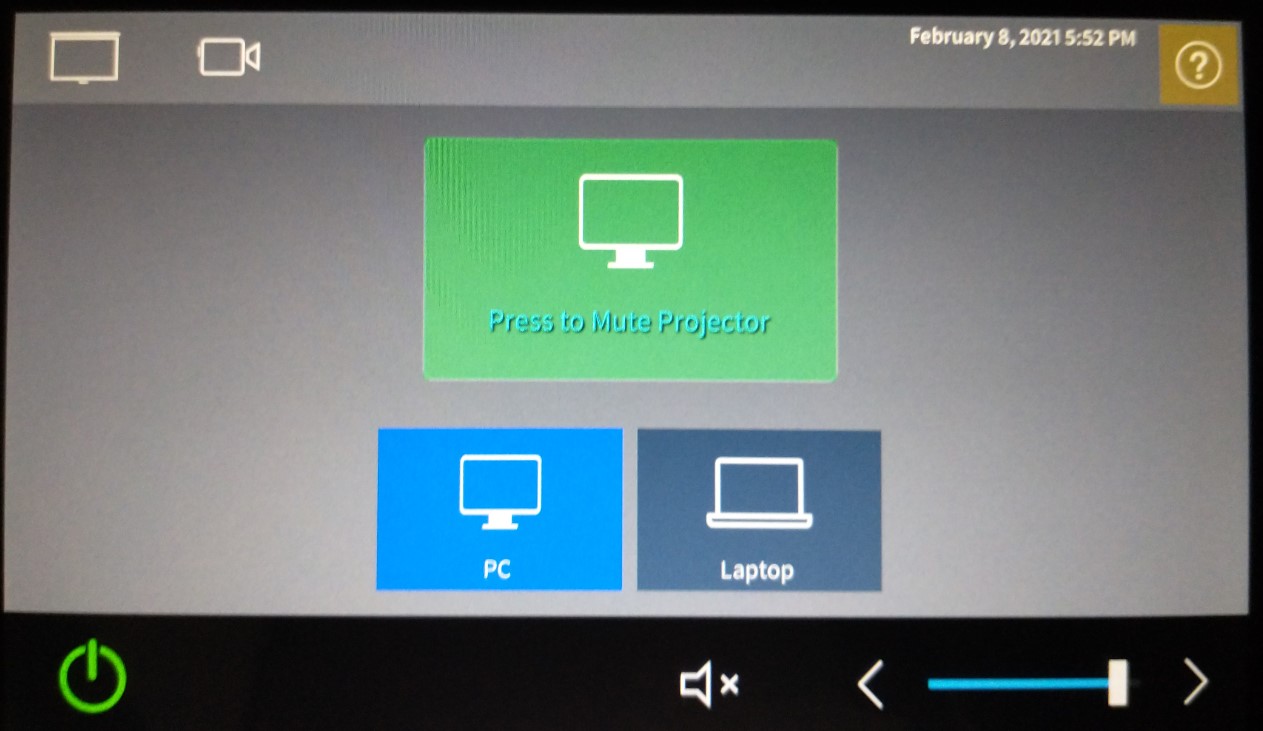
If you click on the screen icon in the upper left hand corner of the Touch Panel, it will take you to the Screen Controls page. Simply put, this is where you can raise and lower the Projector Screen. To exit and return to the Main Screen, simply press the blue "x" in the right hand corner.

If you click on the Camera icon in the upper left hand corner, it will take you to the Camera Controls page. Here, you are able to control the camera that will be installed in the Face-to-Face classrooms. You have the Camera Movements, Zoom Controls, Focus Controls, and Camera Presets. Again, to return to the Main Page, click the blue "x" in the right hand corner.

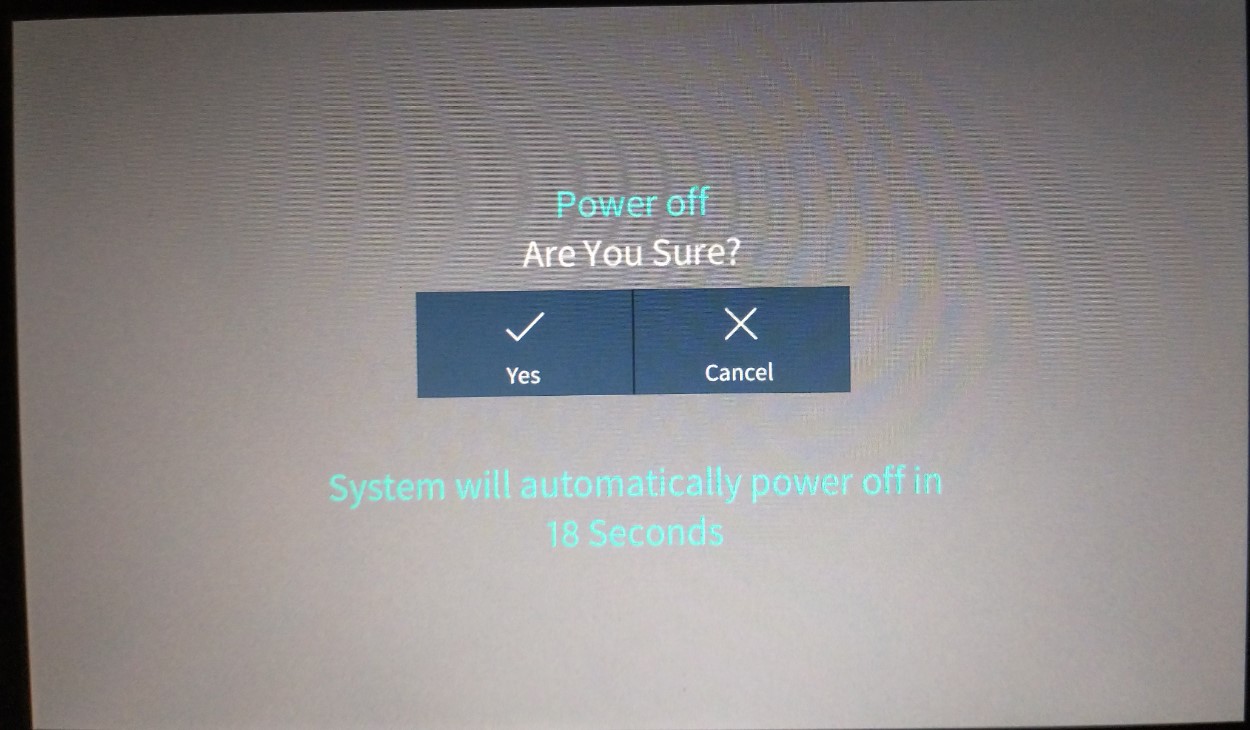
When you finish in the classroom and want to turn the equipment off in the room, simply press the green power button in the bottom left hand corner. It will then prompt you will the message shown in the picture below. If you click yes, the Projector will turn off, the screen will raise itself, and the Touch Panel will return to its sleep mode.
As mentioned previously, the system itself is very simple and has been streamlined for Face-to-Face Classrooms to be as efficient and easy to use as possible. However, if you still have questions about how the Face-to-Face Touch Panel works, please reach out to us on PureChat!
Document Camera
Face-to-Face classrooms may be equipped with a Document Camera as well. These document cameras are simply plugged into the instructor computer and they are controlled either manually or with an application on the desktop. Some professors and classes have used document cameras as makeshift student cameras by pointing the camera at the students and adjusting the image on the computer application. Familiarize yourself the document camera and how it will work if your professor is planning on using it during their class.
Instructor Camera
The Camera used in Face-to-Face classrooms is not like our instructor cameras that we have in Connect Classrooms. These cameras are actually plugged directly into the computer via a capture card instead of plugging into a codec. These cameras are controlled from the Face-to-Face Touch panel and are usually a white colored camera located in the back of the room. There will only be one camera in a Face-to-Face classroom.
Zoom
These rooms are not outfitted to handle Connect classes. These Face-to-Face Classrooms are, however, set up to run Zoom. Using both the instructor computer, the microphone, and the instructor camera, professors can easily set up and run Zoom meetings from within the classroom. If you are helping facilitate a class in a Face-to-Face classroom, you will be helping set up Zoom and helping with controls, breakout groups, and more. Please familiarize yourself with Zoom to help prepare yourself when you facilitate in these rooms.