
Codecs
The codec sends and receives the digital data stream in the room. This is the "brains" of the operation and is controlled by using a touch panel. It makes the connection between us and the distance sites through the internet. The codec models most commonly found at Utah State University are:
DX70
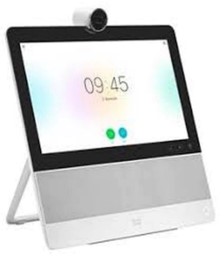
SX 80
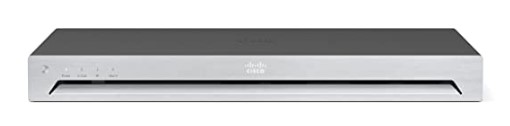
DX80
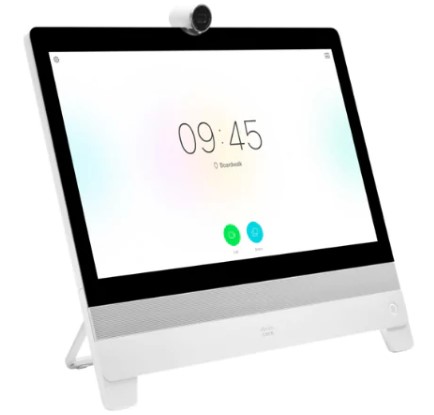
SX 20
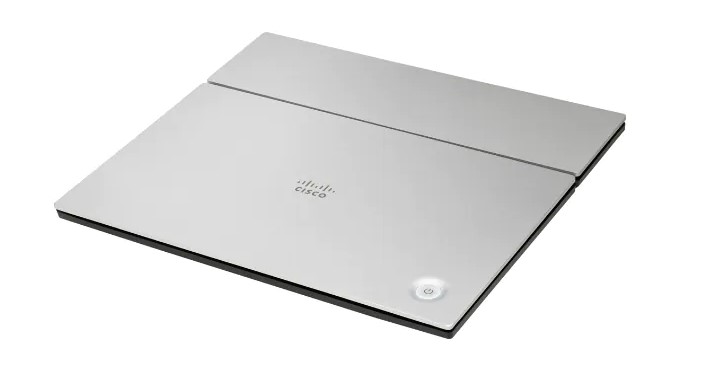
Codec Room Kit
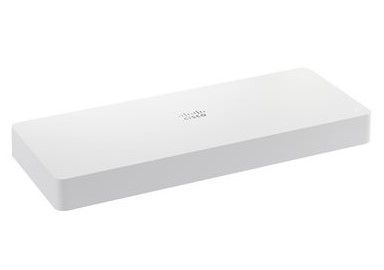
Codec Pro and Plus
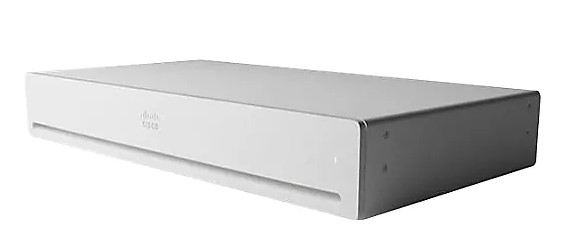
Touch Panels
Touch Panels are a universal remote that connects to the processor in a classroom or conference room. This piece of equipment controls all of the different pieces of equipment that you can find in the room, such as the lights, cameras, content sharing, power controls, and more. At Utah State University, the six most common types of touch panels are the Touch 10, the Huntsman Hall (HH) touch panel, the SCCE touch panel, the Old Crestron touch panel, Zoom Rooms touch panel and the Face-to-Face touch panel systems.
Touch 10

The Touch 10 Touch Panel is the most common type of Touch Panel found in connect supported classrooms at USU Logan's Campus. They promote features such as presenter and speaker track, which allows the cameras to follow whoever is speaking and automatically focus on the presenter or student. Facilitators use a Touch 10 touch tanel that is located at either the instructor's desk or the facilitator station.
SCCE
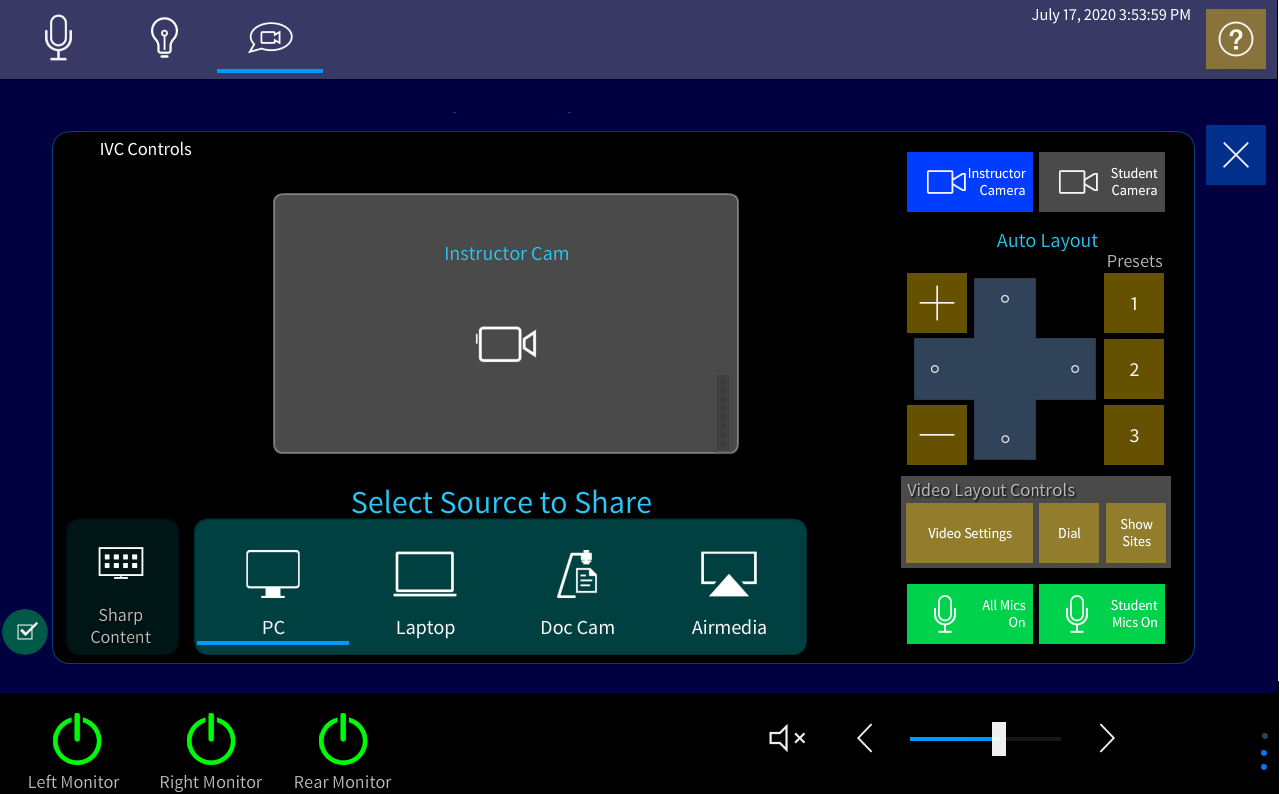
The SCCE touch panel is another type of touch panel that predominantly is found in the SCCE building, but can also be found throughout the Logan Campus. Combining the old style of touch panels with a newer interface, these touch panels are very simple to use. It features content sharing, simple preprogrammed light commands and monitor role selections along with other basic controls. Facilitators use an xPanel system to control the interface from their facilitator computer as well as a physical touch panel, which is located on the instructor's desk
Zoom Rooms
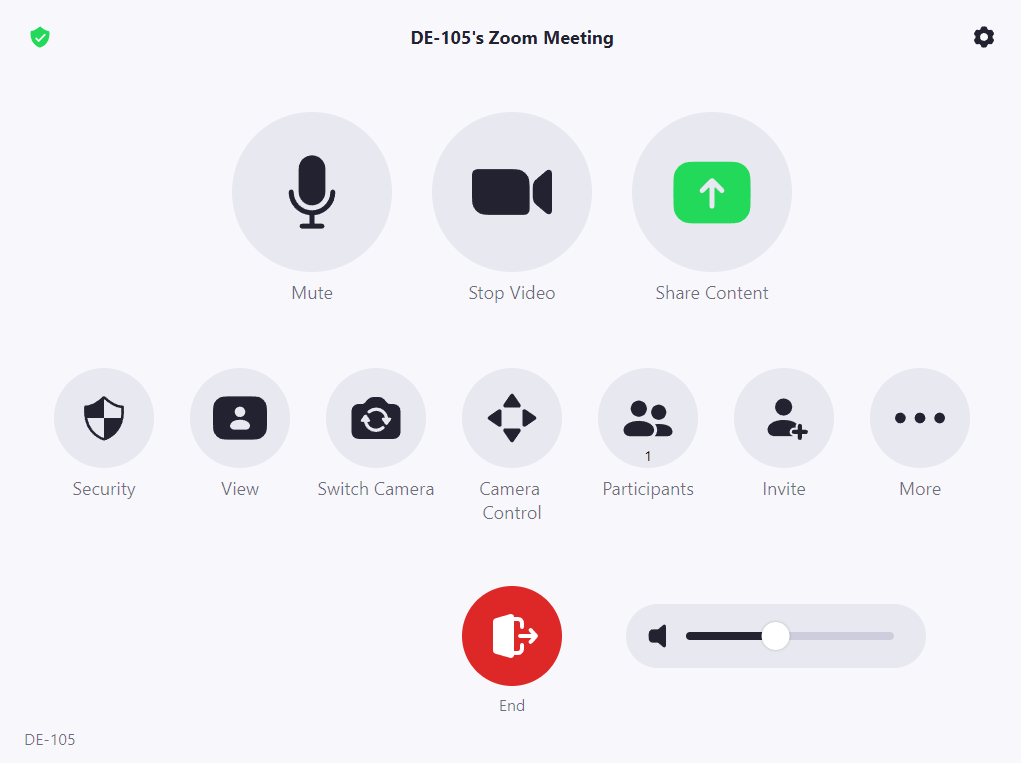
As the University moves from IVC broadcast classes to connect classes, Zoom Room touch panels will become more prevalent. This touch panel simplifies the technology that is needed in the classroom to provide statewide education. Unlike the other touch panels, these rooms do not have a codec and can only broadcast classes through Zoom. Facilitators use a Zoom Room touch panel that is located at either the instructor's desk or the facilitator station.
Huntsman Hall (HH)
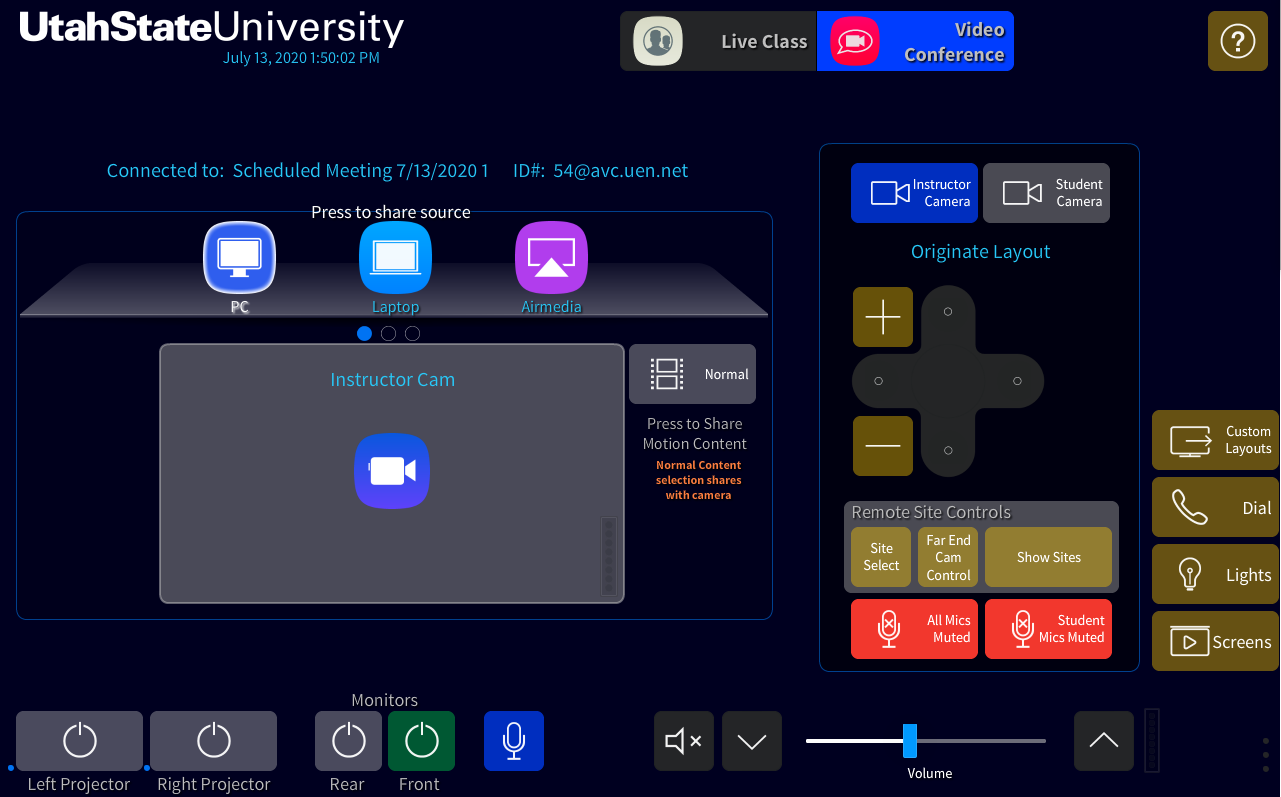
The Huntsman Hall (HH) touch panel is what is currently being used over in Huntsman Hall, which allows professors and facilitators to freely customize the layout of their classroom monitors and screens. These systems feature a drag and drop video switcher that allows the user to change the input source of what is being shown on each screen. Facilitators use an xPanel system to control the interface from their facilitator computer as well as a physical touch panel, which is located on the instructor's desk.
Old Crestron
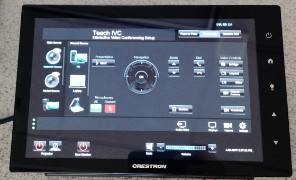
The Old Crestron touch panel is an older version of classroom equipment that some of the university classrooms still use. These systems are very unique and vary between different classrooms. These systems also feature things like content sharing, microphone and camera controls, and monitor source selection and power. Facilitators use an xPanel system to control the interface from their facilitator computer as well as a physical touch panel , which is located on the instructor's desk.
F2F

The F2F touch panel is the control system that you will find in most face-to-face classrooms around USU Logan's campus. These touch panels are very limited in what they can do, but they perform all of the functions needed to make face-to-face courses run smoothly. This touch panel features a power on button for the projector, screen controls, sharing capabilities (only within the classroom), and camera controls. There will usually only be a F2F touch panel at the instructor's desk.
xPanel
The xPanel is an application that facilitators use to control the touch panel interface from their facilitator station. This simple program performs the same functions as the touch panel associated in that room from the PC instead of a touch panel. To get access to the xPanel, you must log into the facilitator computer. The only xPanel still used by our team is found in DE 109. 
Crestron Processor
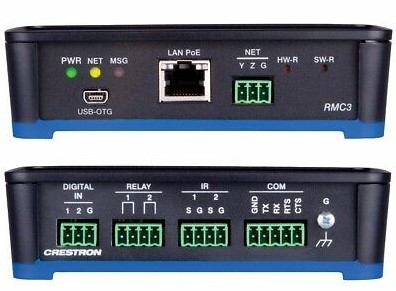
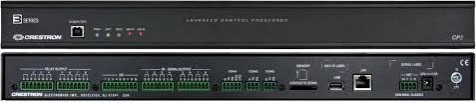
The Crestron Processor is a device that is connected directly to the codec in a classroom. This device controls all of the equipment in the room, such as the projector, the TV, the codec functions, and more and is controlled by the touch panel and the xPanel. This device takes commands from the touch panel and relays the commands to the different pieces of technology found in the classroom, such as the codec. Common brands found on the USU Logan Campus are the DMPS 300, the RMC3, and the CP3.

RMC3
CP3
Shure Wireless Microphones and Receivers
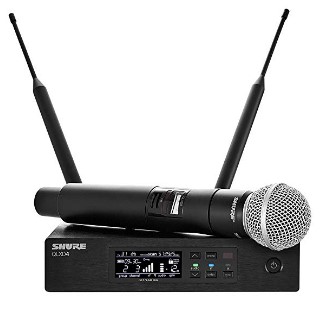
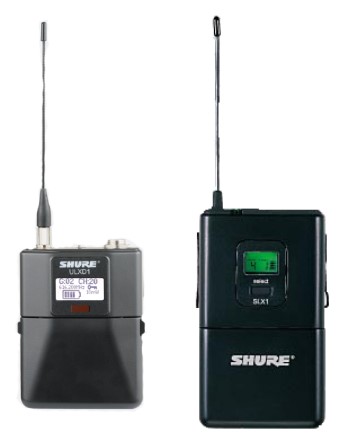
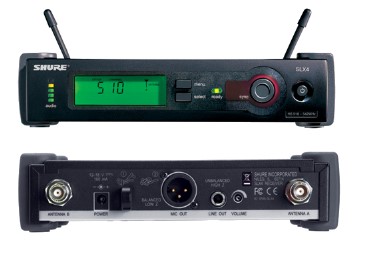
In the classrooms on USU's Logan Campus, most rooms are outfitted with a microphone and a receiver in order to let professors use Zoom in the classroom and to be heard when teaching Connect courses. These microphones can be either a hand microphone or a lapel microphone and are usually a Shure brand microphone. Normally, in most of our classrooms, we have lapel microphones, which can either be rechargeable or battery powered. These microphones should be clipped 6 - 8 inches directly below the mouth, which capture the instructor's voice and transmits it to the mic receiver. As a reminder, please remember to never wrap the mic cable rightly around the belt pack. This can cause damage to the cable and cause shorts in the wire.
Hand Microphone
Lapel Microphone
Receivers
Student Microphones
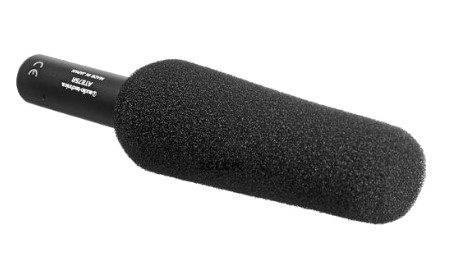
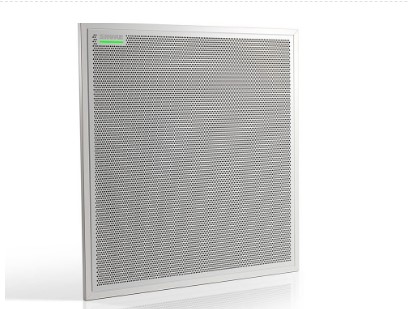
As well as having wireless microphones for the instructor, most of our Connect classrooms are also equipped with student microphones. These microphones, instead of a lapel or handheld microphone, are attached to the ceiling and are controlled via the touch panel, xPanel, and in certain rooms, a push-to-talk student button. They come in different types, such as ceiling microphones and ceiling panels, with very few rooms that feature the hand microphone shown above.
Ceiling Microphone
Ceiling Panel
Capture Cards
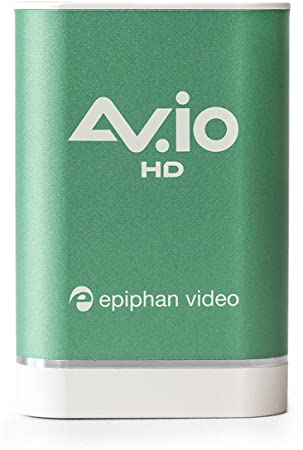
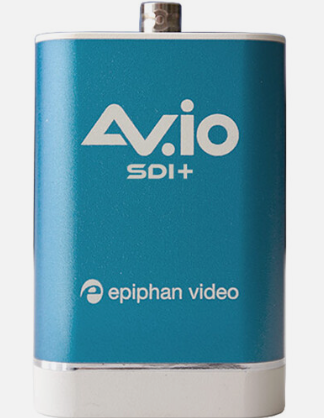
The capture card takes an incoming video signal from a camera or other input source and converts it into a video feed that can be used in recording software such as Zoom, Kaltura, and other editing softwares. At the University, all classrooms (face-to-face and Connect) use capture cards to allow the instructor camera to be viewed in Zoom. In certain classrooms, we also use capture cards to capture content from the PC, laptop, or document camera to be used in recording or editing softwares. While there are many different types of capture cards, the main capture cards we use are the Av.io brand.
HDMI Capture Card
SDI Capture Card
Extenders
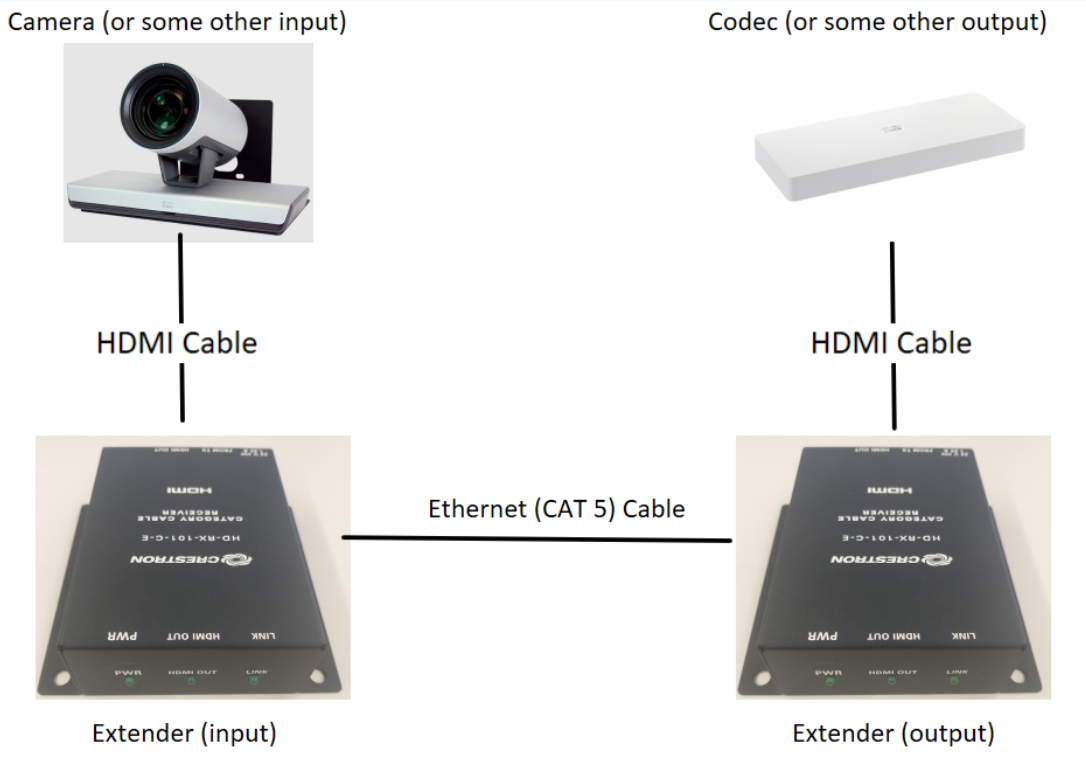
An extender is a device that allows video inputs (camera or other input devices) to be extended across a larger distance. The extenders function like an extension cord for video. These devices take an HDMI video input and convert it into a CAT-5 or -6 (ethernet) output. This ethernet cable can then be ran throughout the classroom to its destination, where it is then converted back from an ethernet input to HDMI output. This allows larger distances to be convered with much cheaper cables and provides easier solutions to wiring classrooms.
Crestron Extender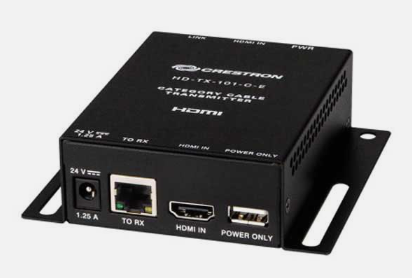
Visual Explanation of Extender
Document Cameras
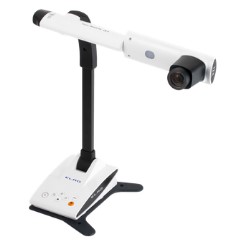
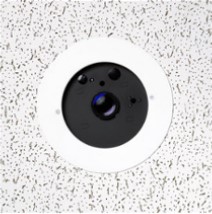
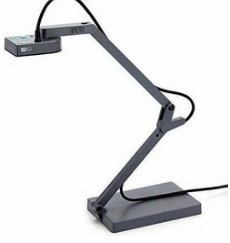
Along with sharing computer and laptop sources in a classroom and within Zoom, some classrooms have been outfitted to have a document camera that is also sharable content. These cameras allow professors and students to display documents or objects over a call and on the projector in a classroom. The two most common types of document cameras we have on campus are the Vaddio ceiling document camera and the Elmo brand table top document camera. Vaddio ceiling document cameras are controls through the room's touch panel or the remote controller located in the room, while the tabletop document cameras are controlled manually. There are many different types of table top document cameras, which will be featured below:
Elmo LX-1
Vaddio
Ipevo Ziggi
Samsung
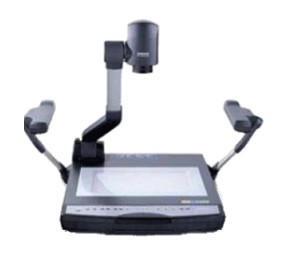
Instructor Computers and Touch Screen Monitors
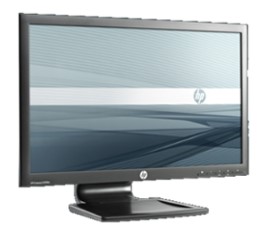
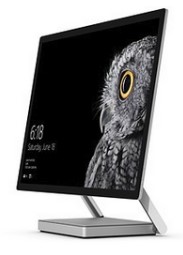
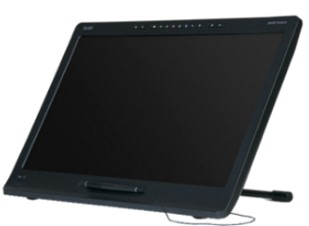
At USU, we have been able to improve classroom conditions and equipment to better help provide a more innovative and intuitive teaching environment for both faculty and students. One of the many improvements that have been made in the classroom is the inclusion of a touch screen monitor/computer that instructors can use to annotate notes, make drawings, and edit PowerPoint slides. While there are many different types of computer monitors found on campus, we have gradually moved towards using these computers with touch screen capabilities. The most frequently found touch screen monitors/computers found on Logan's campus are showcased below:
HP Touch Monitor
Microsoft Surface Studio
Smart Podium
Projectors and TVs
Another feature that has been added to most classrooms, especially in Connect classrooms, has been large TV monitors and projectors. We use these to display content, such as the instructor PC, the document camera, or even the remote sites to the students and/or instructor in the classroom. This provides a very large and clear presentation that is easy to adjust and change if needed.
Crestron AirMedia
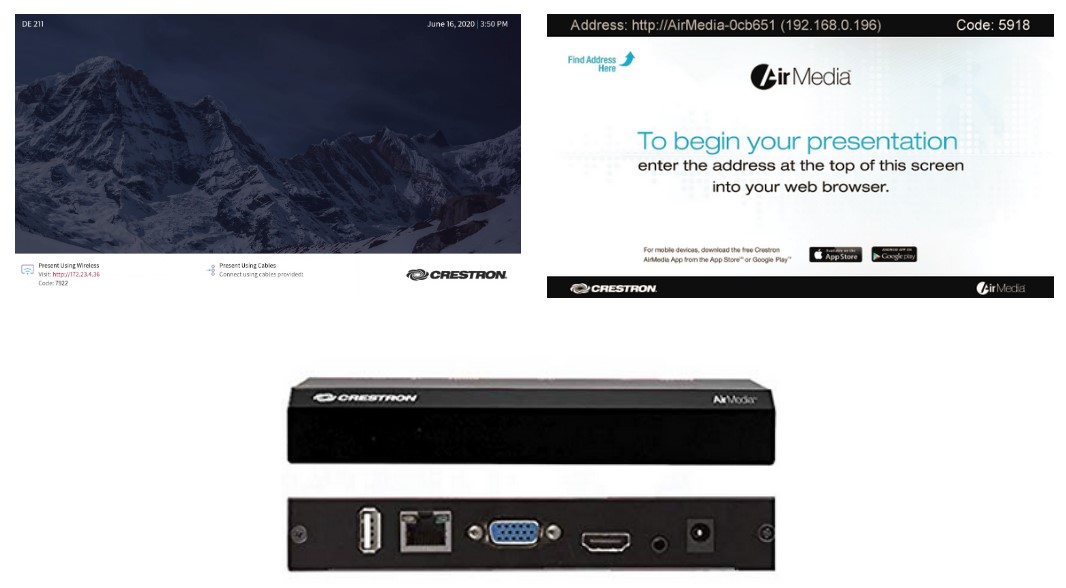
Along with being able to share the instructor computer and the document camera, classrooms have the capability of sharing an HDMI connection source as well. This "Laptop" source is commonly found in almost all classrooms at USU's Logan Campus. However, in certain rooms, there is a device called AirMedia that allows a laptop or mobile device to present over the room's system wirelessly. If a professor would like to use this system during their course, please review the instructions on how to set the system up.
Audio Mixers and Amplifiers
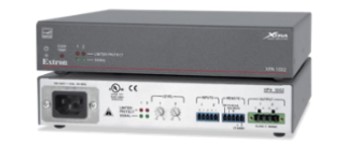
With all of the different microphones, both student and instructor, the Audio Mixer and Amplifier process the levels and quality of all the audio in the room. This includes making incoming audio sound better as well as managing outgoing audio sources. These systems are also used in certain larger classrooms to create room amplification, which projects the instructor's voice using the instructor's microphone. These are the different brands of audio mixers and amplifiers found throughout USU's Logan campus:
Extron
BSS

DE Lights
The lights in the DE Building can be a bit confusing to those who have never used them before. To control the lights in the room, simply select which section of lights you wish to control (Listed as numbers 1, 2, 3, and 4) by highlighting the number section that you wish to control, and then select which action you would like to perform. The "On" button turns that section of lights on. The "Off" button turns that section of lights off. The arrow keys will dim or brighten the selected light sections.
See the video below for an example of each of these functions.